
0.12 Managing Membership, Billing & Credits
Buy or extend an Access Pass, review credits, and manage billing records.
Quick Guide
Where: Membership & Billing
Main actions: upgrade, billing portal, credit purchase, refund request
Who manages billing: owner accounts
What this page contains
- Your current plan and limits.
Buy top-up creditsin the credits card while an Access Pass is active.Open Billing Portalfor Stripe billing tasks.Billing ActivityandRequest a refund or view history.
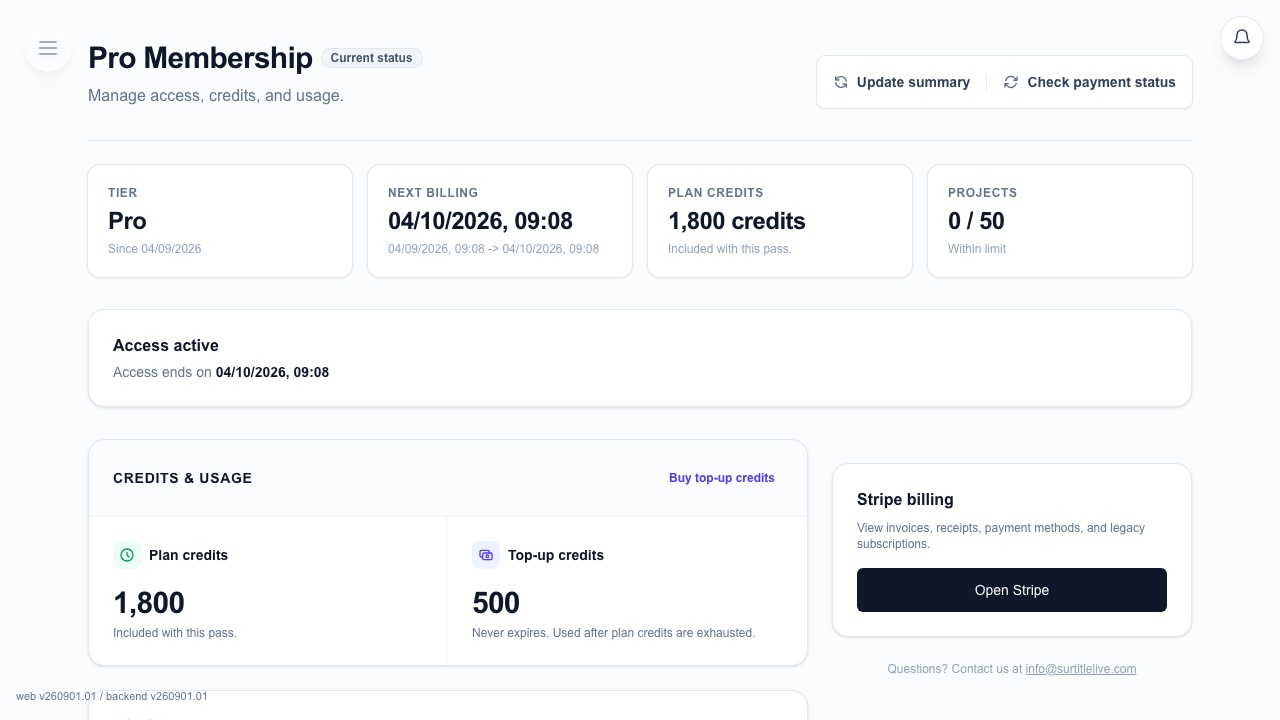
Upgrade paths on the page
- Choose Lite, Pro, or Pro+, then choose a Week Pass or Month Pass. New Access Pass purchases are one-time and do not renew automatically.
- An active Web-purchased pass can be extended with the same offer. An active Web-purchased Lite pass can upgrade only to the matching Pro duration through the displayed quote.
- An active App Store-purchased pass is managed in the Pockitle app; Web checkout cannot extend or upgrade it while it is active.
- Pro and Pro+ do not downgrade in place. Choose another tier only after the active pass ends.
Billing tasks
- Use
Open Billing Portalfor payment methods, invoices, receipts, and any existing legacy recurring subscription. - Use
Request a refund or view historywhen you need the refund flow. - Use
Buy top-up creditsif your plan credits are not enough and an Access Pass is active. Previously purchased Top-up credits remain available after the pass ends.
Credit reminders
- Lite includes plan credits and 1 live deployment while its Access Pass is active.
- The page shows the next Plan-credit refresh or the Access Pass end. Buying the same pass again does not refill the current credit window early.
- Top-up credits are separate from plan credits.
- For detailed usage history, open Credit Usage.
FAQ
Common questions for this workflow, based on the current Pockitle Cue system.
Can I switch from Pro or Pro+ to a lower Access Pass tier while my pass is active?+
No. An Access Pass does not renew automatically. Wait until the current pass ends, then choose a new eligible tier and duration.
Do top-up credits expire?+
No. Top-up credits stay on the account and are used after plan credits are exhausted.
Billing Workflow
Continue In This Workflow
Membership, credits, refund requests, codes, and organization or team-management actions tied to account administration.
0.13 Viewing Credit Usage
Track AI credit consumption, plan-credit grants, and what happens when you run low.
0.18 How to Request a Refund in Pockitle Cue
Request a refund from the Membership page and understand the current refund eligibility and review flow.
0.7 Redeeming an Invitation Code
Redeem a trial or promo code from the Membership page if your account is eligible.