
3.1 Using Simulation Mode
Preview prepared languages, then choose live languages and finalize the script.
Simulation is a preview and finalization step. It is not the live ASM operator cockpit.
Open Simulation
- In the editor top toolbar right area, click
Open Simulation. This button uses a right-pointing play triangle icon. - Simulation opens with the languages prepared in the Editor. You do not choose the live languages yet.
Use the top toolbar
Back to Editoris the blue button at the top-left with a left-pointing arrow icon.Rotatesits in the top toolbar center-right as a checkbox control.Screenssits in the same top toolbar row and sets how many preview screens you want to inspect.S1,S2, andS3are the language selectors to the right ofScreens.- Translation percentages show completion. They do not mean a language has been selected for live delivery.
Read the preview layout
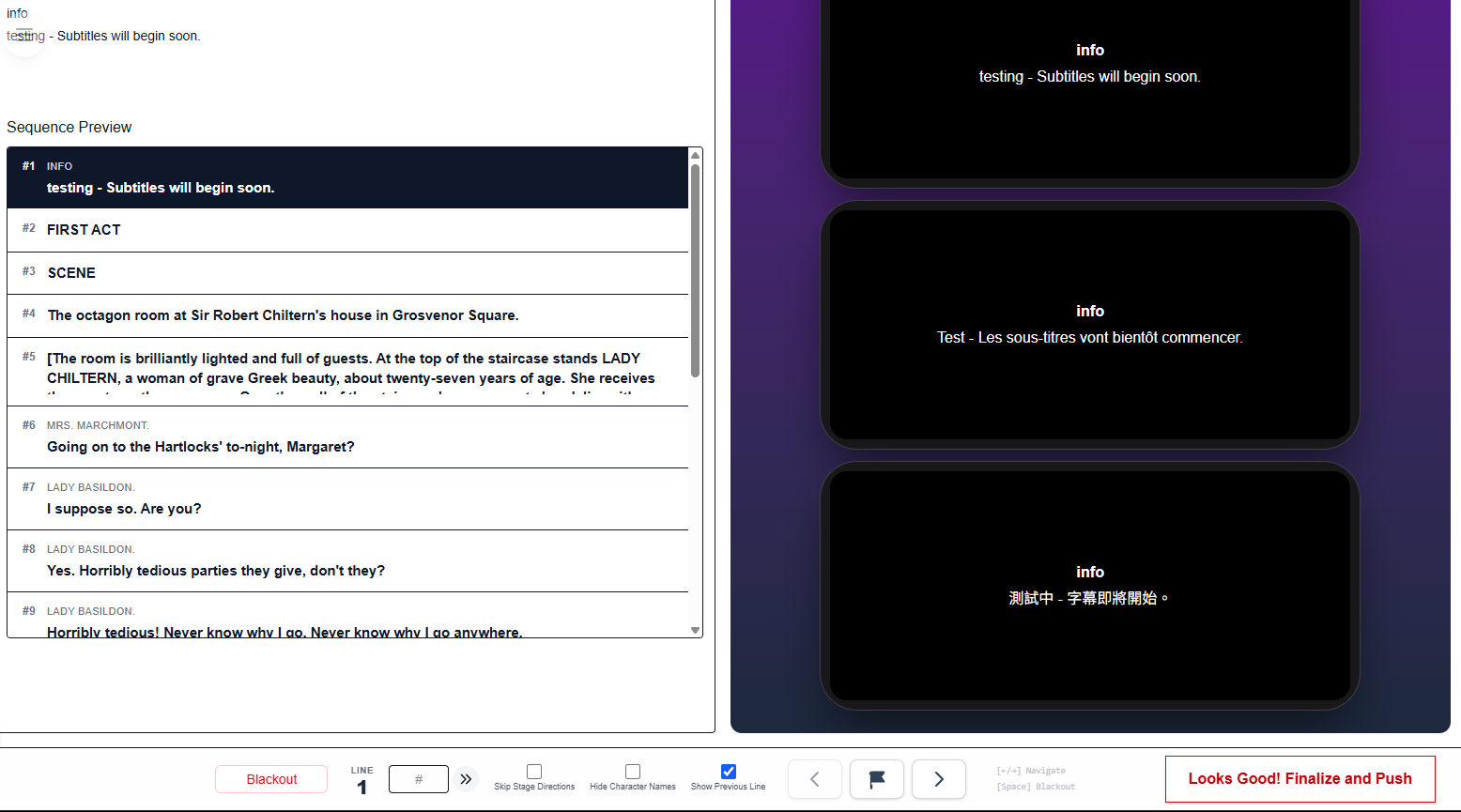
- The left panel shows Cue Details and Sequence Preview.
- The right panel shows the viewer-style preview for the current cue.
- This is still preview only. It does not mean the audience is live.
Use the bottom controls
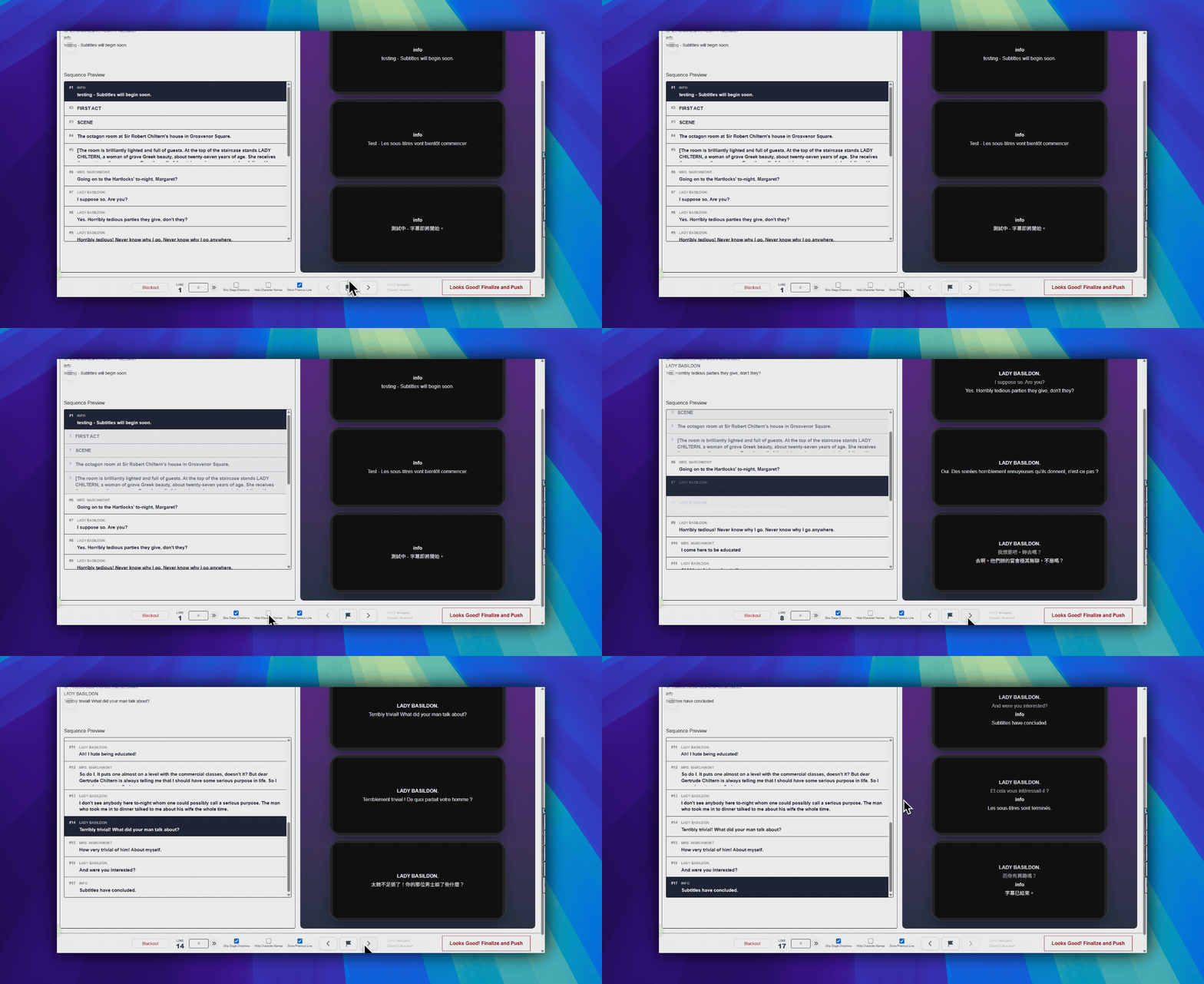
Blackoutis in the bottom-left area and toggles a black preview screen.- The
Linereadout in the lower center shows the current cue number. - The
#field in the lower center jumps to a sequence number. Skip Stage DirectionsandHide Character Namesare checkbox controls in the lower center area.- The left and right arrow buttons in the lower center-right area move one cue at a time.
- The flag button between the arrow buttons marks the current line for follow-up.
Optional keyboard shortcuts
Left Arrow: previous cueRight Arrow: next cueSpace: blackout
These shortcuts work in Simulation preview. They are not a description of the live ASM cockpit.
Go back when something looks wrong
- Click
Back to Editorat the top-left. - Fix the script.
- Save the changes.
- Open Simulation again and recheck the result.
Finalize the script
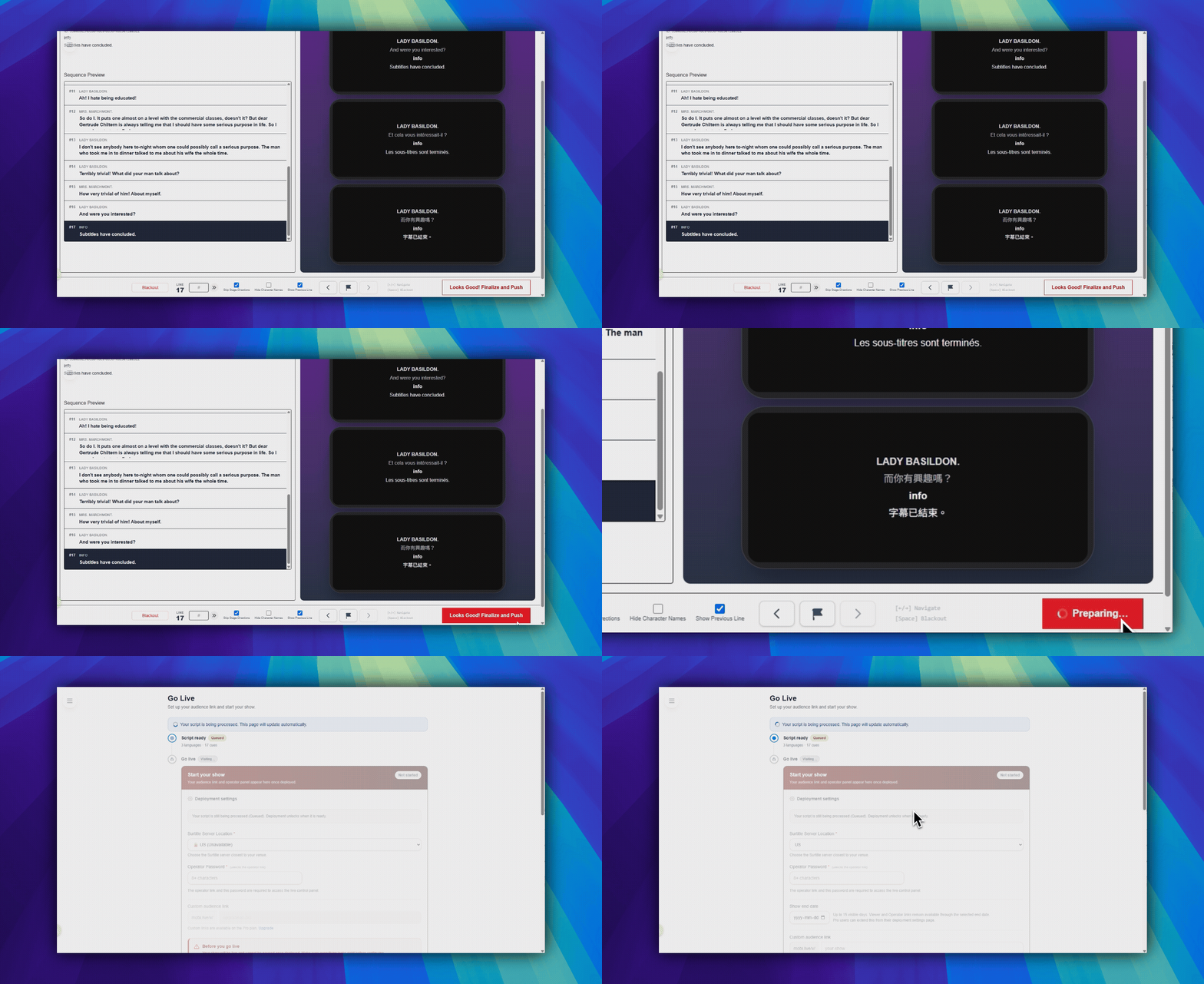
- When the preview looks right, click
Looks Good! Finalize and Pushat the bottom-right. It is the large red-outline button. - In
Choose live languages, the source language is already included. - Select the translated languages for the audience. The dialog shows your plan limit and each language's completion.
- Click
Finalize and Push. This creates the deployment-ready script state and sends you to show setup.
Important: Finalize requires owner or manager access. Eligible Free workspaces use the limited 60-minute deployment preview; paid access uses the current membership entitlement.
FAQ
Common questions for this workflow, based on the current Pockitle Cue system.
Is Simulation the same thing as the live operator cockpit?+
No. Simulation is a preview environment for checking timing, layout, and language output before the live show.
Who can finalize a script from Simulation?+
Owners and Managers can finalize a script and continue into the deployment flow.
Deployment Workflow
Continue In This Workflow
Script preparation, translation workflow, live deployment, operator control, and runtime troubleshooting.
4.1 How to Deploy Live Subtitles for a Show
Deploy live surtitles by finalizing your script, confirming plan-specific region behavior, setting operator access, and sharing viewer links.
4.2 How to Manage a Live Deployment
Manage viewer links, front-of-house materials, operator access, live subtitle updates, duration, and deployment retirement.
4.3 How to Update Live Subtitles After Deployment
Load the latest saved Editor subtitles into an active deployment from the Editor or Deployment dashboard without changing viewer links or QR codes.