
4.3 How to Update Live Subtitles After Deployment
Load the latest saved Editor subtitles into an active deployment from the Editor or Deployment dashboard without changing viewer links or QR codes.
Purpose: reload the latest saved editor text into an active deployment.
Entry points: Update Live in the Editor top-right toolbar or Deployment Cockpit.
When to Use This
Use this workflow after a show has already been deployed and you need the live deployment to use subtitle fixes saved in the Editor.
- A typo or line break was corrected in the Editor after deployment
- A translation line was adjusted after rehearsal
- A cue was merged, split, reordered, or rewritten before showtime
- The active Viewer and Operator links should stay the same
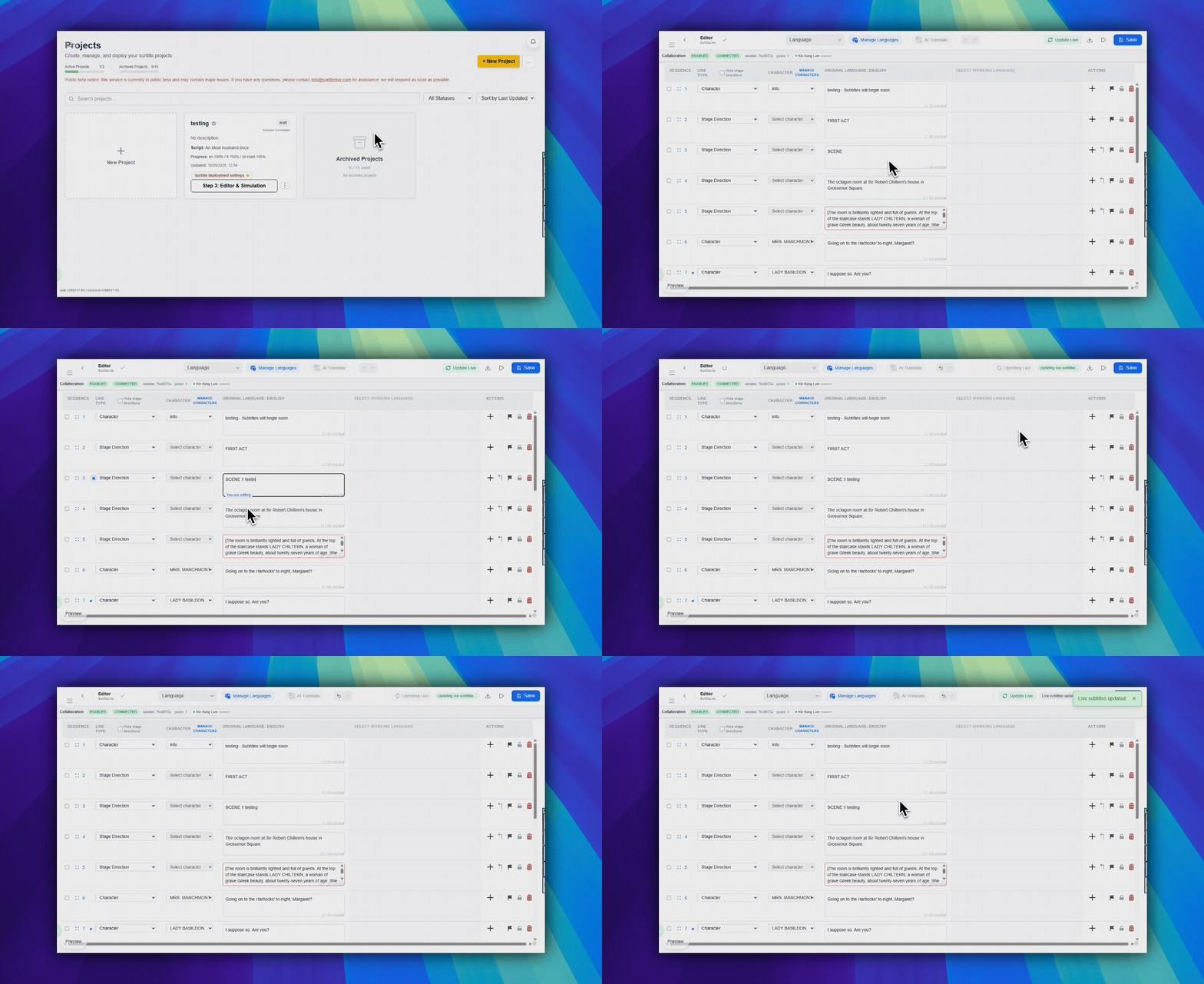
From the editor
- Open the editor as an owner or manager.
- Make the subtitle changes.
- Save the editor changes.
- Click
Update Livein the top-right toolbar. This button appears only when the project already has an active deployment. - Confirm the update dialog.
From Deployment Cockpit
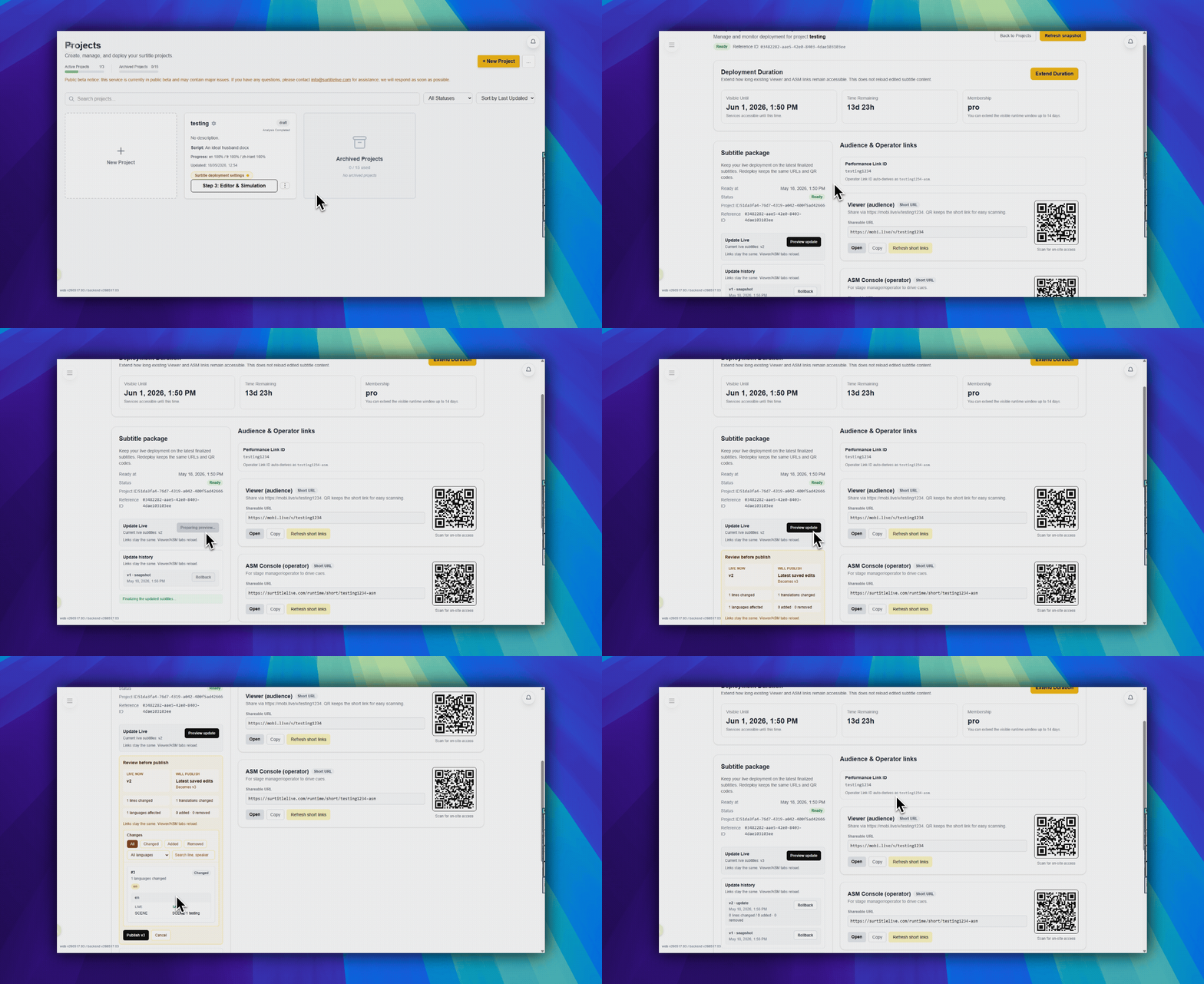
- Open Deployment Cockpit.
- Find
Update Livein the main deployment action area. - Click it and confirm the update.
What Changes and What Stays the Same
Updated
- The subtitle package used by the active deployment
- Saved Editor text, line grouping, and translations included in the update package
- The runtime payload after the update finishes
Unchanged
- Viewer links
- Operator links
- QR codes
- Deployment duration and operator password unless you change them separately
Important Boundaries
- This is not text editing inside ASM.
- Unsaved editor changes are not included.
- Viewer links, QR codes, and ASM links stay the same.
- Rehearse this path before using it close to showtime.
FAQ
Common questions for this workflow, based on the current SurtitleLive system.
Is this an Operator Cockpit function?+
No. The Operator Cockpit controls live cue state. Save in Editor, then use Update Live in the editor or Update Live Subtitles in Deployment Cockpit.
Does Update Live Subtitles change the viewer link or QR code?+
No. It loads the latest saved Editor subtitle package into the active deployment while keeping the existing Viewer and Operator links and QR codes.
Do unsaved Editor edits get pushed?+
No. Save the Editor changes first, then run Update Live Subtitles. Treat the update as a deliberate deployment operation, not inline show-time text editing.
Deployment Workflow
Continue In This Workflow
Script preparation, translation workflow, live deployment, operator control, and runtime troubleshooting.
4.4 Using the Operator Cockpit
Run live theatre subtitle cues from the SurtitleLive Operator Cockpit, manage Intermission and blackout states, and control what audiences see.
5.1 Projection and Mobile: What Each Output Does
Understand how room-visible projection and audience-phone subtitles differ, and why many shows use both from the same live cue state.
5.2 Using Projector Settings
Configure the preset, prepare projector subtitles, save, and return to ASM.