
5.2 Using Projector Settings
Configure the preset, prepare projector subtitles, save, and return to ASM.
Use for: Configure the projector-facing preset before the show.
Not for: Audience-phone delivery, subtitle-text editing, or full offline mode.
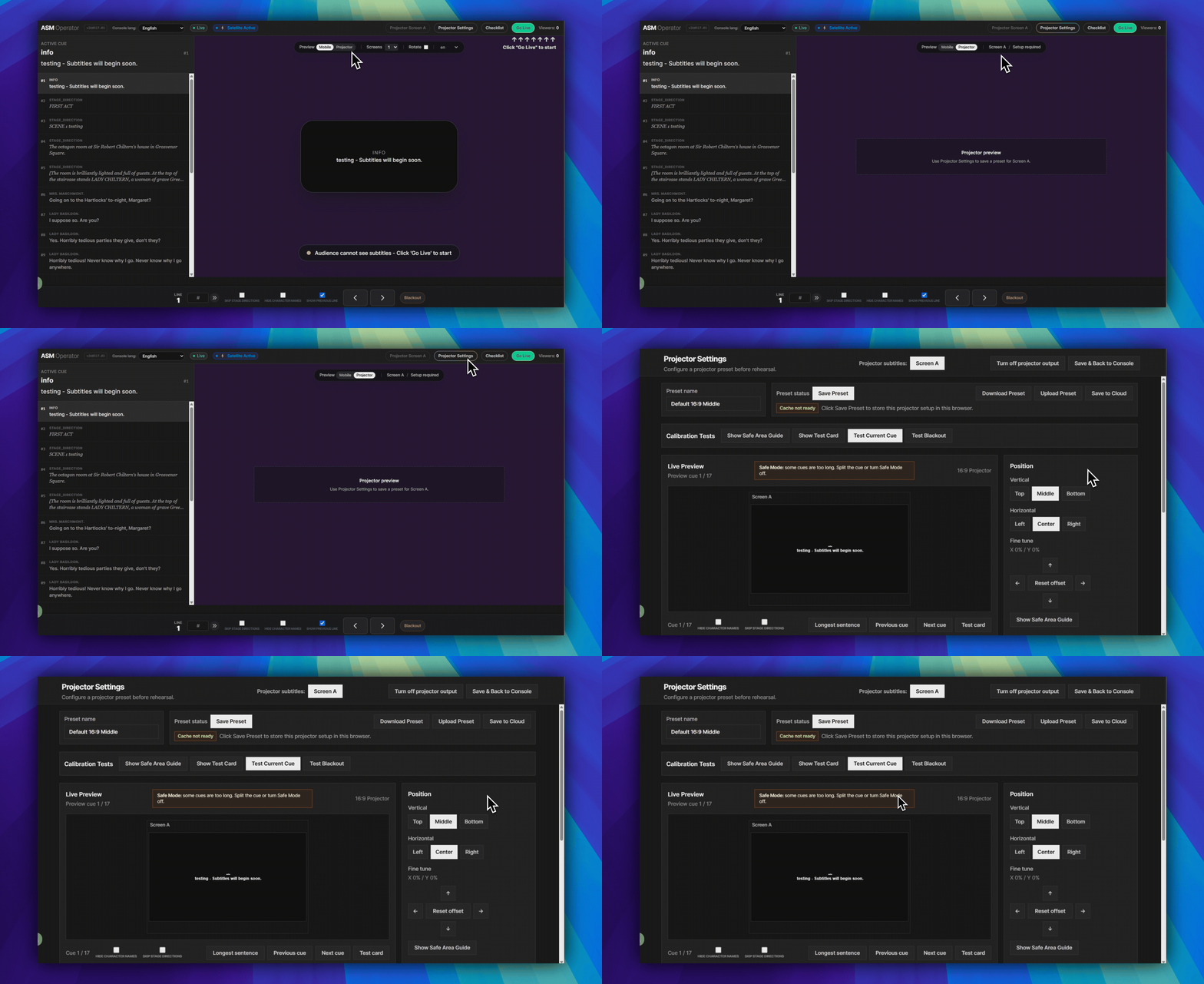
Open Projector Settings
- Open the
ASM Consolefirst. - In the ASM top-right header row, click
Projector Settings. It is the rounded button besideProjector Screen AandGo Live. - This opens the page titled
Projector Settings.
Use the preset bar first
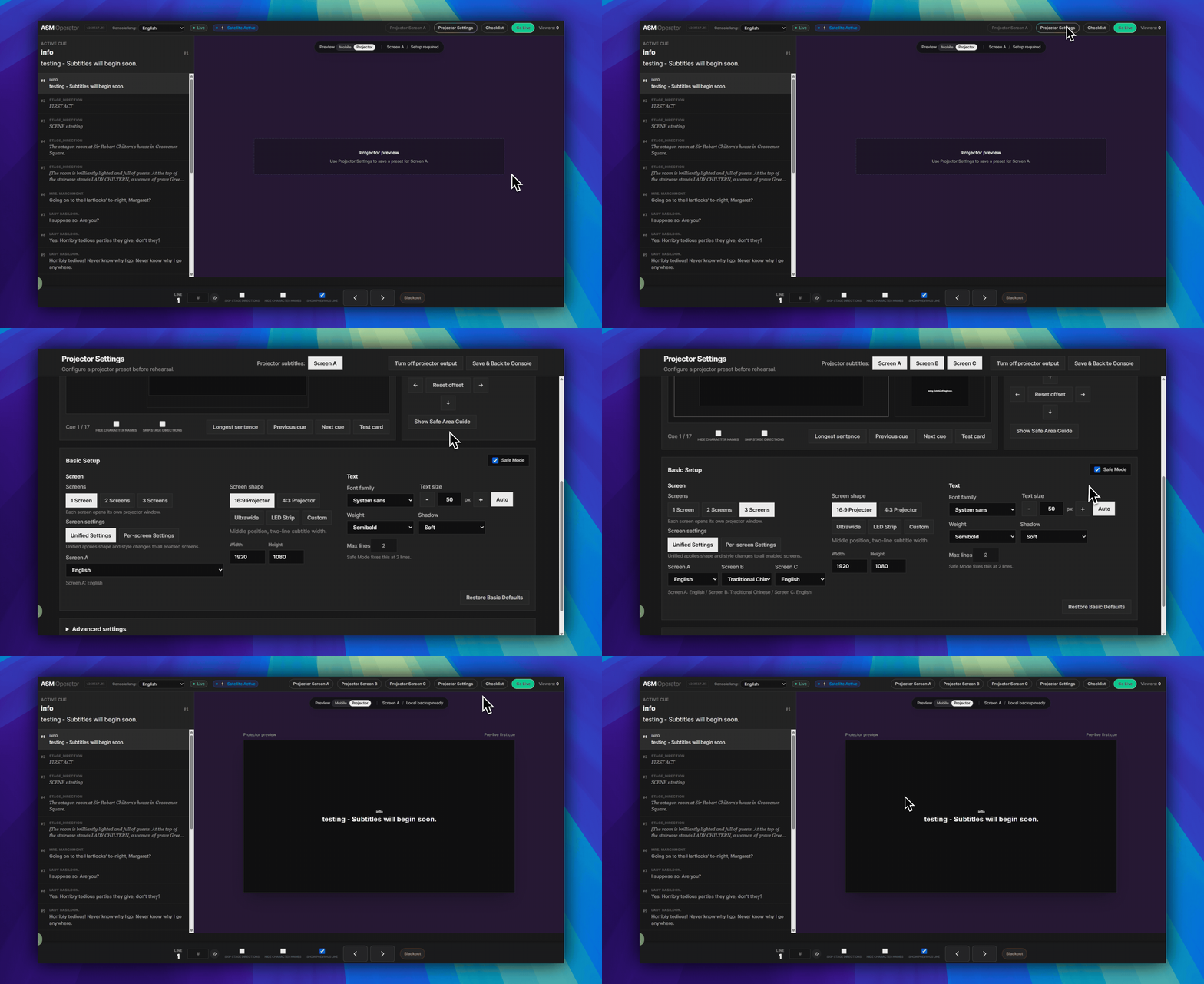
Preset namesits in the top-left input area.Save Presetsits in the upper center-left action row and stores this setup on this ASM device for this project.Download Presetdownloads a preset file for backup or another computer.Upload Presetloads a preset file into the current setup.Save to Cloudsends the preset to Dashboard-authorized project storage. This may open a Dashboard authorization window.Save & Back to Consolesaves the setup, prepares projector subtitles, and then returns to ASM.
Run the built-in checks
- Use the
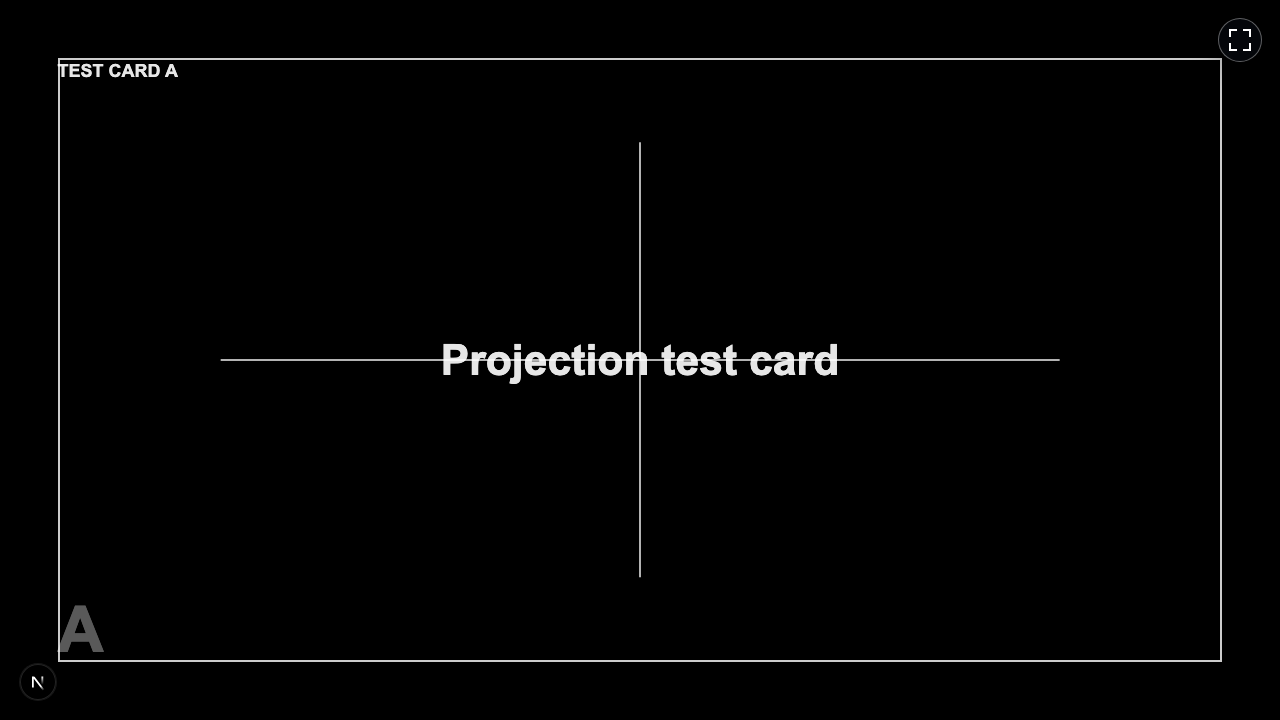
Calibration Testsrow near the top. Show Safe Area Guidehelps check the screen boundary.Show Test Cardchecks the display path before the cue feed matters.Test Current Cuesends the current cue into the preview.Test Blackoutchecks blackout behavior before the audience enters.
Use the lower panels only when needed
- Open
Advanced settingsin the lower part of the page for line height, safe area, max width, max lines, outline, colors, speaker names, and stage directions. - Open
Diagnosticsbelow that if you need to inspect preset storage, local projection cache, projector window status, or the current route.
Check the screen route
- Return to the ASM header if needed.
- Open
Projector Screen Aon the computer connected to the projector or LED screen. - Wait for the projector window to connect.
- Advance one cue from ASM and confirm the projector window responds.
What this page does not do
- It does not replace the audience phone viewer.
- It does not include subtitle text, runtime links, or tokens inside preset files.
- It does not claim offline reload support.
- It does not mean SurtitleLive works without cloud delivery for mobile viewers.
FAQ
Common questions for this workflow, based on the current SurtitleLive system.
Where do I open Projector Settings?+
Open the ASM Console first. In the top-right header row, click Projector Settings. It opens the Projector Settings page.
What does Save Preset actually save?+
Save Preset stores the current projection setup on that ASM device for that project. It does not save subtitle text, runtime links, tokens, or mobile viewer delivery.
Is Projector Settings the same as mobile audience delivery?+
No. Projector Settings is for room-visible projector output. Audience phones still use the Viewer Link or QR-code browser flow.
Deployment Workflow
Continue In This Workflow
Script preparation, translation workflow, live deployment, operator control, and runtime troubleshooting.
5.3 Preparing Projection Mode for Showtime
Prepare Projection Mode before performance, test already-open local projection continuity, and understand what this does not cover.
5.4 QLab control for ASM and Viewer sync (Beta)
After deployment, enable QLab control in ASM, import the QLab Projection Pack, connect the local bridge, and rehearse QLab-driven ASM and Viewer cue sync.
0.15 Troubleshooting Without a Logs Page
Use visible workflow status, Credit Usage, deployment banners, and retry prompts when there is no general Logs page.