
5.3 Preparing Projection Mode for Showtime
Prepare Projection Mode before performance, test already-open local projection continuity, and understand what this does not cover.
Use for: Theatre projector workflows and prepared local projection continuity.
Core rule: prepare before showtime and keep both ASM and the projector window open.
Important boundary: If ASM and the projector window are already open, projected text may keep responding during venue internet loss. Audience phones do not get that same protection. Mobile surtitles stay cloud-delivered, so if the venue has no internet, phones will not keep receiving subtitles.
What Projection Mode Covers
Projector mode is designed for theatre projector workflows: a computer connected to the venue projector or LED screen opens a projector window, and the ASM console cues the projected surtitles during the show.
When the setup is prepared before showtime, already-open ASM and Projection screens may keep responding during venue internet loss. This does not mean the whole SurtitleLive workflow works without internet, and it does not extend to audience phones.
Prepare the room before the audience enters
- Open the
ASM Consoleand unlock it. - Open
Projector Settings. - Use
Save & Back to Consoleand wait until ASM returns. If projector preparation fails, stay on the page and save again. - Open
Projector Screen Aand confirm the projector window connects. - Keep the projector window open on the computer connected to the projector or LED screen.
- Confirm that cue changes in ASM move the projector window before the audience enters.
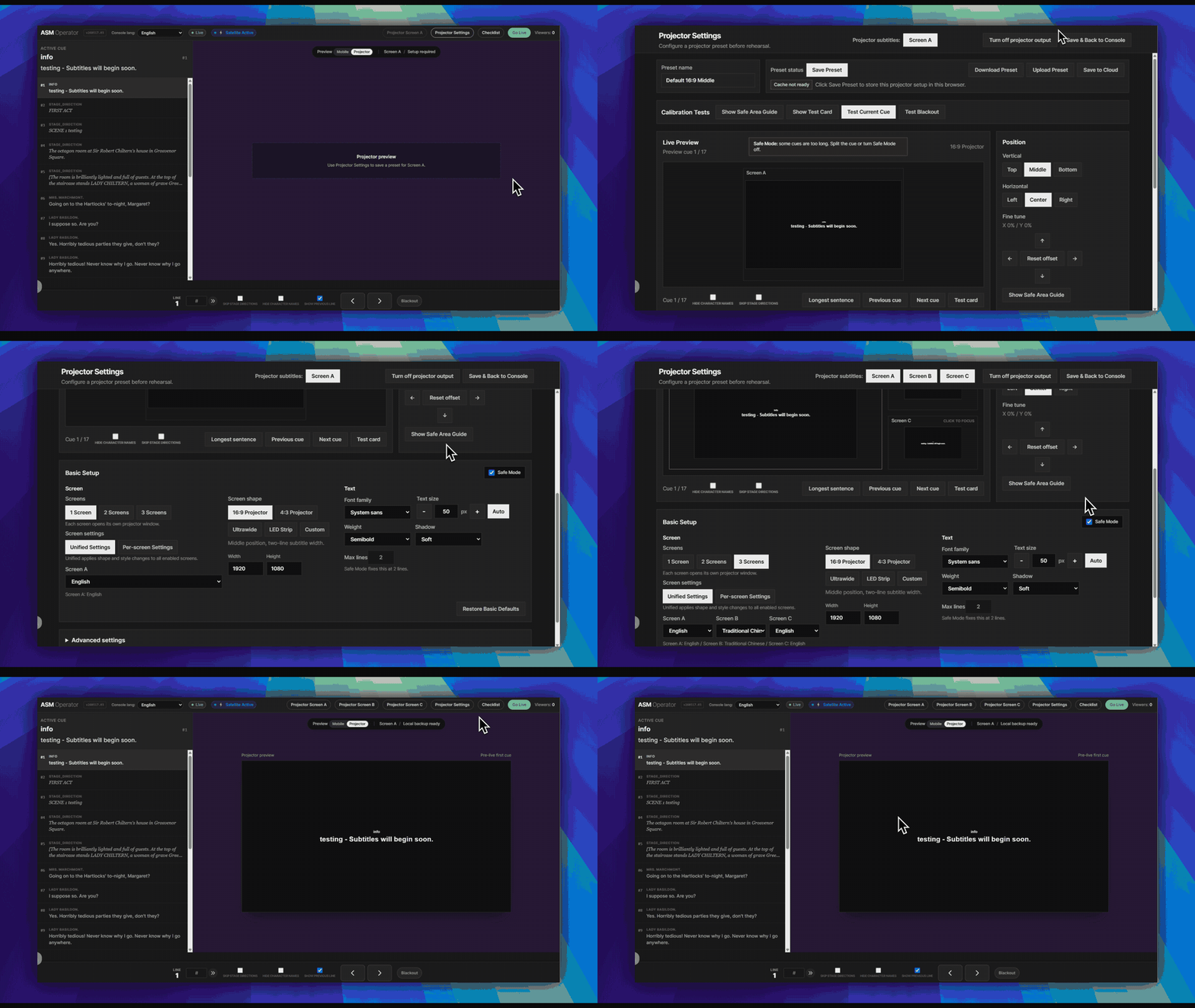
Test prepared local projection continuity
Run this only after the normal live path already works.
- Deploy the show and open ASM.
- Open the projector window and confirm it responds.
- Go Live.
- After both windows are already open, press
F12in Chrome, open theNetworktab, changeNo throttlingtoOffline, run the test, then change it back toNo throttlingwhen you finish. - Advance, jump, and blackout from ASM.
- Confirm the already-open projector window still responds.
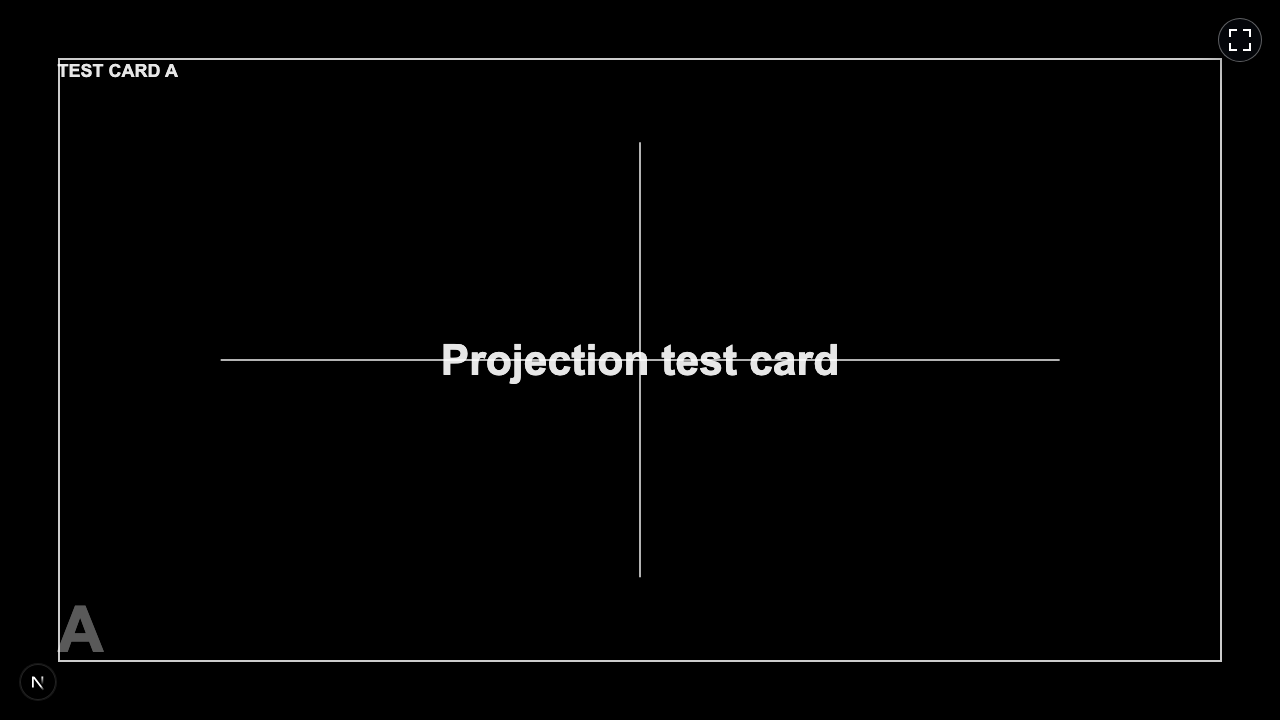
What This Does Not Cover
- It does not mean the whole SurtitleLive workflow works without internet.
- It does not cover browser refreshes or reopened browsers after venue internet loss.
- Mobile surtitles stay cloud-delivered.
- It is not a guarantee against interruption.
Use the ASM Checklist during pre-show
The ASM Console header includes a Checklist button beside Projector Settings. Open it during rehearsal to confirm the actual subtitle output that people will see.
- The Checklist has two independent sections:
Phone captionsandProjector captions. If the show does not use a projector, the projector section is marked optional. - For phones, open the audience Viewer QR/link on one phone, click
Go Liveif the button is still visible, click the bottom-right>button once, then confirm the phone subtitle changes before markingWorks. - For the projector, click
Projector Settings, return withSave & Back to Console, openProjector Screen A, clickGo Liveif needed, click>, confirm the projector subtitle changes, then testBlackout. - The Checklist supports rehearsal. It does not replace physically confirming that the projector and audience phones are receiving subtitles before showtime.
Practical Show Checklist
- Use a dedicated projector computer where possible.
- Keep ASM Console and the projector window open for the whole show.
- Walk through the in-ASM
Checklistfor both phone and projector surfaces before house open. - Test the projector resolution, text size, and blackout behavior in the room.
- Test mobile surtitles separately on the venue network if audience phones are part of the plan.
- Keep an export or backup display plan for venue-device, browser, or power failures.
FAQ
Common questions for this workflow, based on the current SurtitleLive system.
Does Projection Mode cover every network-loss scenario?+
No. The current public claim is narrower: prepared local projector output can continue when the ASM console and projector window were already open and prepared before venue internet loss. This does not cover browser refreshes, reopened-browser recovery, or audience mobile viewers without cloud connectivity.
What should I test before relying on local projection continuity?+
Before showtime, save the preset, open Projector Screen A, confirm the projector window responds, then run a controlled offline test. In Chrome, press F12, open Network, change No throttling to Offline, test the cues, then switch back to No throttling.
How do I use the ASM Checklist during rehearsal?+
Open the Checklist button in the ASM header next to Projector Settings. It has separate Phone captions and Projector captions sections. For phones, open the audience Viewer QR/link on one phone, click Go Live if it is still visible, press the bottom-right > button once, then mark Works only after the phone subtitle changes. For projector output, open Projector Settings, open Screen A, return with Back to Console, then test > and Blackout before marking Works. The Checklist supports rehearsal and does not replace a physical confirmation that the projector and audience phones are receiving subtitles before showtime.
Deployment Workflow
Continue In This Workflow
Script preparation, translation workflow, live deployment, operator control, and runtime troubleshooting.
5.4 QLab control for ASM and Viewer sync (Beta)
After deployment, enable QLab control in ASM, import the QLab Projection Pack, connect the local bridge, and rehearse QLab-driven ASM and Viewer cue sync.
0.15 Troubleshooting Without a Logs Page
Use visible workflow status, Credit Usage, deployment banners, and retry prompts when there is no general Logs page.
0.16 Error Messages & Troubleshooting
Decode common project, translation, deployment, auth, and operator-session issues.