
5.4 QLab control for ASM and Viewer sync (Beta)
After deployment, enable QLab control in ASM, import the QLab Projection Pack, connect the local bridge, and rehearse QLab-driven ASM and Viewer cue sync.
Beta
Use for: letting QLab project local subtitle Text cues while also driving the Pockitle Cue live cue state for audience phone subtitles.
Important: deploy the show first. Before deployment, QLab can only use the offline Editor export described in Exporting a QLab Import Pack.
What this beta workflow does
This workflow keeps Pockitle Cue as the script, translation, deployment, live-console, and audience-phone system. QLab becomes the show-control surface for subtitle cues during the performance.
- QLab displays the imported subtitle Text cues locally, so the projection computer has a QLab-native subtitle backup.
- When armed, each Pockitle Cue subtitle Group can also tell Pockitle Cue to jump to the matching deployed cue.
- The already-open Pockitle Cue live console then publishes the normal cue state to Viewer links and audience phones.
- This is not a separate deployment path. It uses the existing deployed show, existing ASM link, and existing Viewer links.
Prepare subtitles on Pockitle Cue
- Finish script editing, translation, and subtitle review in the Editor.
- Use Simulation to confirm cue order and languages.
- Deploy the show through Go Live.
- Open the deployed show in Deployment Cockpit.
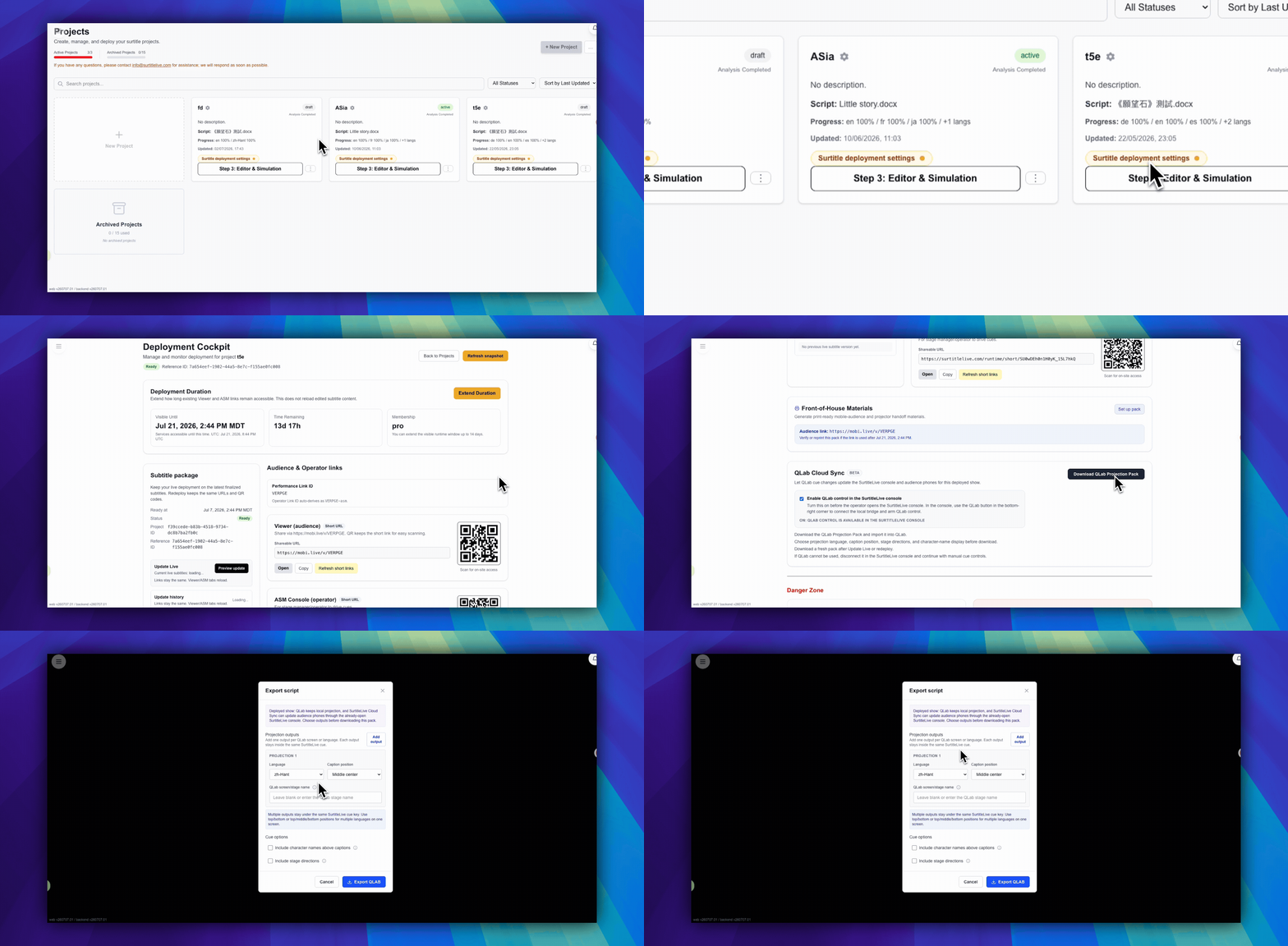
Enable QLab Cloud Sync and download the pack
- In Deployment Cockpit, find the
QLab Cloud Syncpanel after Front-of-House Materials. - Turn on
Enable QLab control in the Pockitle Cue console. This does not change the ASM link, QR code, Copy, or Open action. - Download the QLab Projection Pack for the deployed show.
- In the QLab options dialog, choose projection outputs before download: language, caption position, same-screen or separate-screen routing, QLab screen/stage name when needed, character-name display, and stage-direction handling.
- The beta defaults remain theatre-safe: character names hidden and stage directions skipped unless you deliberately include them.
- Download a fresh QLab Projection Pack after Update Live or redeploy so QLab and ASM use the same deployed subtitle source.
- Download the pack on the Mac that will run QLab. Cloud Sync uses QLab Script cues, which require a QLab license of any kind. Node.js (version 18 or newer) must also be installed on this Mac to run the bridge helper.
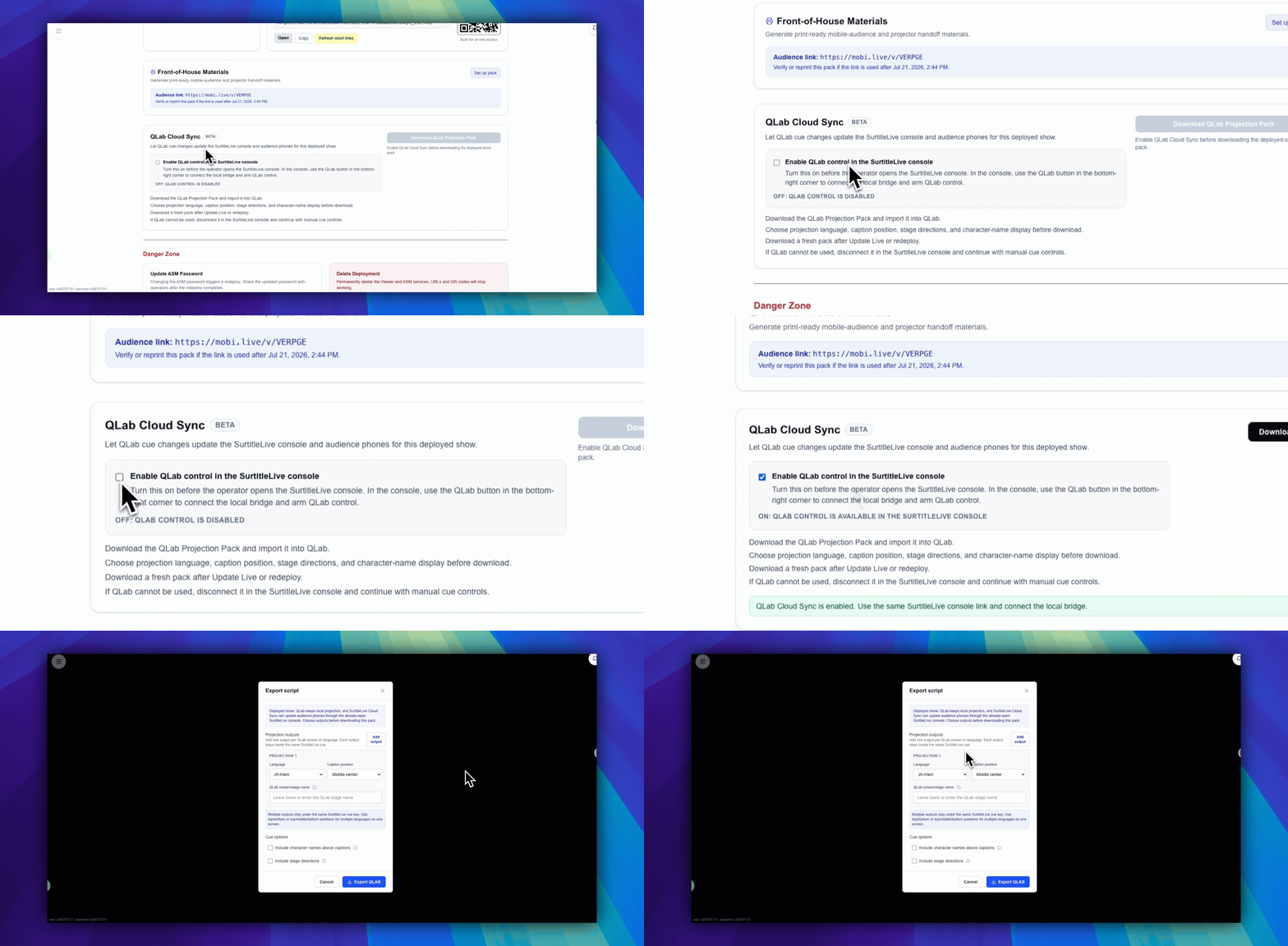
Set up the downloaded pack in three steps
- Unzip the pack, open your QLab 5 workspace, then read and follow
1 - START HERE.txt. It is the short operator guide for this pack. - Run
2a - Import into QLab.applescript, then choose2b - QLab Cue Data.json. - Double-click
3 - Start Local Bridge.commandand keep Terminal open. Open and unlock the normal ASM Console, clickGo Live, and wait forCloud publish: Ready. Then openQLab enabledat the bottom-right, clickConnect local bridge, allow local-network access if asked, wait forBridge helper: Connected, then clickAllow QLab control.
The Support Files folder is for checking or troubleshooting only. You do not need to open it during normal setup.
Imported pack structure & rules
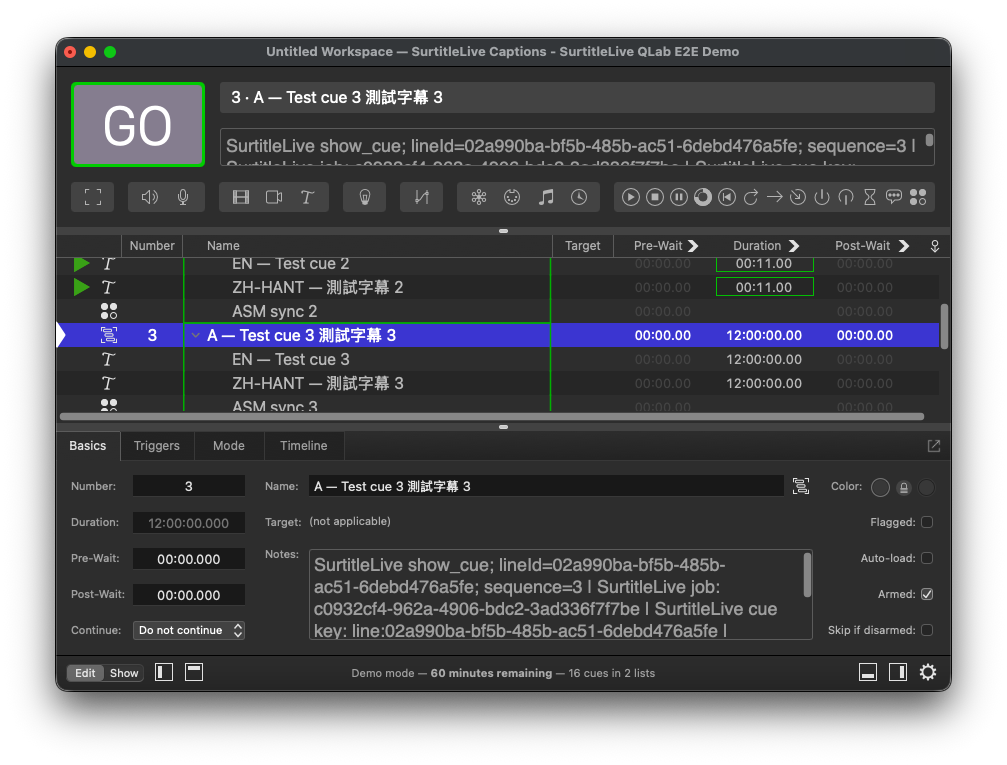
- The deployed-show pack imports Pockitle Cue subtitles as QLab Groups. Each Group contains one or more Text child cues for local projection and one Script child cue that sends non-secret cue identity to the local bridge.
- If you choose multiple languages or screens, keep them inside the same Pockitle Cue Group. They are the same subtitle cue, not separate cue moments. Same-screen languages should remain separate Text child cues at different top/middle/bottom positions.
- If you include stage directions as Text cues, they are imported as normal Pockitle Cue Groups too. They can project locally and sync to audience phones, which is useful for accessibility captions. Memos do not support sync.
- If you import a revised pack later, matching Pockitle Cue subtitle Groups are updated by stable cue key. Pockitle Cue output children omitted by the latest pack are disabled and cleared; your sound, light, video, standby, and other QLab cues are untouched.
- Move whole Pockitle Cue subtitle Groups into your main QLab show list. Do not copy them: duplicate stable cue keys are rejected before re-import changes captions.
- Add sound, light, video, standby, wait, pause, or other QLab cues before, after, or between Pockitle Cue subtitle Groups.
- Keep each Pockitle Cue Group intact. Do not split Text child cues from the Script child cue unless you intentionally want that subtitle to stop syncing audience phones.
Bridge checks and troubleshooting
- Double-click
3 - Start Local Bridge.command. It opens Terminal automatically. The bridge requires Node.js 18 or newer, must run on the same Mac as QLab, and its Terminal window must stay open during the show. - If file 3 does not open, open
TerminalfromApplications → Utilities, then follow the short fallback in1 - START HERE.txt: runbash "./3 - Start Local Bridge.command"from the unzipped pack folder. - If port
37621is busy, do not change the port in QLab. If a Pockitle Cue bridge is already running, keep it open and connect ASM to it. Do not start another bridge. - If another app owns the port, open
TerminalfromApplications → Utilitiesand runlsof -nP -iTCP:37621 -sTCP:LISTEN. Stop that app only if you recognize it and it is safe to stop before the show, then restart the bridge. Otherwise disconnect QLab control and continue with normal ASM controls. - Confirm the Pockitle Cue live console shows
Bridge helper: ConnectedandCloud publish: Ready. - After
Allow QLab control, ASM switches mobile Viewer and Projection output to cue-to-cue replacement, so the previous subtitle disappears when the next QLab subtitle cue fires. - While QLab control is allowed, ASM locks its mobile-subtitle display toggles. If your QLab pack includes stage directions as Text cues, QLab-triggered stage-direction cues still project and sync to audience phones.
- Run one QLab subtitle cue to verify QLab cue input reaches ASM.
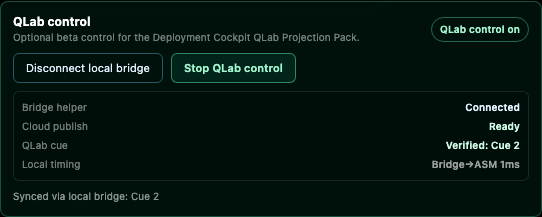
Rehearse before showtime
- Run one early subtitle from QLab and confirm QLab projection, Pockitle Cue live-console current cue, and Viewer subtitles all match.
- Confirm the previous subtitle disappears when the next QLab subtitle cue appears.
- Run one middle subtitle directly from QLab, not only the next cue.
- Jump to a wrong subtitle, then correct it from QLab, and confirm ASM and Viewer follow the corrected cue.
- If your show uses QLab blackout, pause, wait, or standby cues, test those as your own QLab cues. The Pockitle Cue beta pack does not add extra blackout, standby, test-card, memo, or final-clear cues.
- If any check fails, click
Stop QLab controland use Pockitle Cue live-console manual controls or QLab projection-only as the fallback.
If subtitles change after export
- Make the subtitle change in Pockitle Cue and save the Editor.
- Use Update Live Subtitles or redeploy, depending on your live workflow.
- Download a fresh QLab Projection Pack from the updated deployment.
- Run the importer again. Text edits to the same cue in Pockitle Cue update the matching QLab Group and its output Text children in place.
- New cues in Pockitle Cue receive new cue keys and are inserted after the previous Pockitle Cue Group when possible. Removed subtitles are marked as removed rather than deleted.
- Text-only edits leave the QLab source identity unchanged, so an older pack may still sync ASM while its QLab Text cues show old wording. Cue order, line ID, number, or type changes alter that identity, and old-pack events then stop reaching ASM. Re-import the latest pack after any update and rehearse QLab projection, ASM, and Viewer together.
- After re-importing, check any surrounding sound, light, video, wait, or standby cues before performance.
Safety boundaries
- The QLab Projection Pack does not contain Pockitle Cue passwords, runtime tokens, or admin credentials.
- QLab local projection can continue if the network drops, because the Text cues live in the QLab workspace.
- Mobile Viewer sync still needs ASM, the local bridge, and Pockitle Cue runtime control to be connected.
- The local bridge only relays allowed cue jumps from QLab to ASM on the show Mac. It listens on loopback localhost, not a public network interface.
- The local bridge is the only QLab-to-ASM control path. If it is unavailable, disconnect QLab control and continue with manual ASM.
- ASM prepares the QLab sync timeline only after QLab control is enabled in Deployment Cockpit and the operator connects and allows QLab control in ASM.
- QLab connected status is not proof that audience phones are receiving subtitles. Always test a real Viewer link before performance.
FAQ
Common questions for this workflow, based on the current Pockitle Cue system.
Can I use this beta sync pack before deployment?+
No. The sync pack belongs to a deployed show. Before deployment, use the Editor QLab import pack for offline projection only.
What does QLab control when this is armed?+
QLab projects its local Text cues and sends armed cue jumps through the local bridge to the already-open Pockitle Cue live console. Pockitle Cue then publishes the normal cue state to Viewer links and audience phones.
Does enabling QLab control create a new ASM link?+
No. Deployment Cockpit keeps the same ASM link, QR code, Copy, and Open actions. The toggle only allows the already-open ASM Console to connect and arm the local QLab bridge.
Can I add sound, light, video, or standby cues in QLab?+
Yes. Add them before, after, or between whole Pockitle Cue subtitle Groups. Keep each Pockitle Cue Group intact so all language/screen Text child cues and the sync Script child stay together. Later QLab Projection Pack imports update matching Pockitle Cue Groups by stable cue key and do not delete your other QLab cues.
What happens if the venue network drops?+
QLab local projection can continue because the Text cues are inside the QLab workspace. Mobile Viewer sync still needs ASM, the local bridge, and Pockitle Cue runtime control to be connected.
Deployment Workflow
Continue In This Workflow
Script preparation, translation workflow, live deployment, operator control, and runtime troubleshooting.
0.15 Troubleshooting Without a Logs Page
Use visible workflow status, Credit Usage, deployment banners, and retry prompts when there is no general Logs page.
0.16 Error Messages & Troubleshooting
Decode common project, translation, deployment, auth, and operator-session issues.
2.1 Editor Quick Start
Use the core editor controls for languages, AI translation, simulation, and export.