
2.8 Exporting a QLab Import Pack
Download a projection-only QLab 5 import pack from the Editor and import Pockitle Cue subtitle Text cues into an offline QLab workspace.
Offline QLab export
This guide covers the Editor QLab import pack: a projection-only export for QLab 5. It creates local QLab Text cues only. It can be used before deployment and does not connect QLab to ASM, Viewer links, QR codes, or audience-phone subtitles.
When to use this export
Use this workflow when the venue already runs QLab for projection or show control and you want Pockitle Cue to prepare the subtitle cue list.
- Pockitle Cue remains the script preparation and export tool.
- QLab becomes the local playback tool for the imported Text cues.
- The pack is useful for offline projection workflows, rehearsal backups, and venues that prefer a QLab workspace on the show computer.
- If you need QLab to drive the Pockitle Cue live console and audience phone subtitles after deployment, read QLab + Pockitle Cue Sync beta instead.
Prepare the script first
- Upload and analyze the script.
- Open the Editor and review cue order, text, languages, stage directions, and character names.
- Save the Editor before exporting.
Free accounts can test the first 30 saved cues. Lite, Pro, and Pro+ can export the full script.
Download from the Editor
- In the Editor top-right toolbar, click
Download file. - Choose
QLab import pack. - In the QLab options dialog, choose whether the outputs share one QLab screen or route to separate QLab screens/projectors.
- For one screen with multiple languages, leave the screen/stage name blank or shared, then use different caption positions such as top, middle, and bottom. For separate projectors, enter a different QLab screen/stage name for each output.
- Leave
Include character names above captionsoff unless you want role names in the imported Text cues. - Use the stage-direction option to include or skip stage directions before the pack is generated.
- Download the ZIP file.
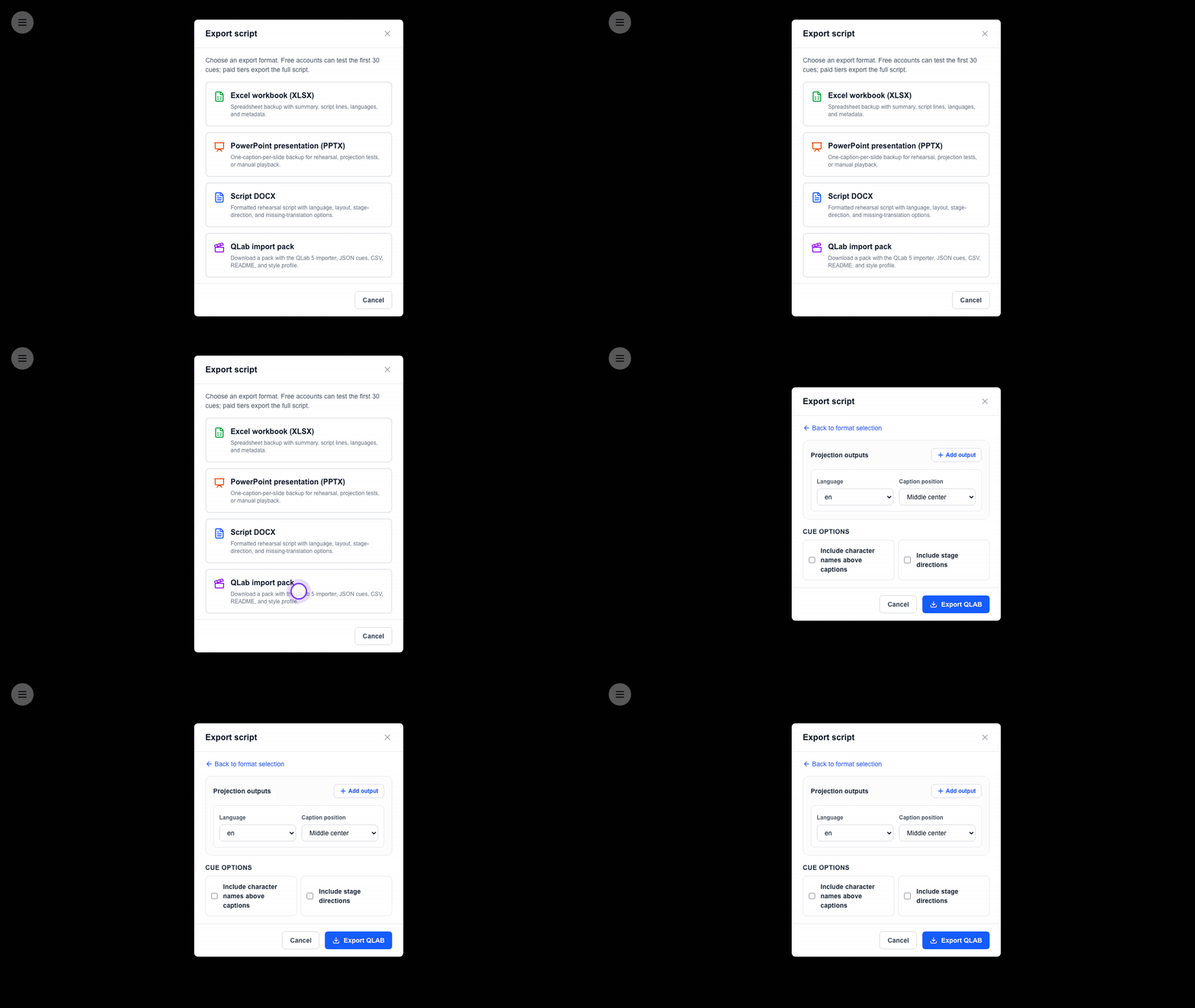
This pack is projection-only. You can use it without deploying the show, but it cannot update the Pockitle Cue live console or audience phone subtitles.
Import into QLab 5 in three steps
- Unzip the pack, open your QLab 5 workspace, then read and follow
1 - START HERE.txt. It is the short operator guide for this pack. - Run
2a - Import into QLab.applescript, then choose2b - QLab Cue Data.json. - Check the first, middle, and final imported Text cues. If you entered screen/stage names before download, confirm they map to the correct QLab stages.
The Support Files folder is for checking or troubleshooting only.
QLab screen/stage assignment can be prepared before download, but the venue workspace remains authoritative. Always confirm the imported cues on the actual QLab stages before showtime.
Use it inside a full QLab show
The importer uses stable cue keys in Pockitle Cue. Text edits to the same cue in Pockitle Cue update the matching QLab cue in place, while your existing sound, light, video, standby, and stage-management cues are not changed.
- Each Pockitle Cue subtitle keeps one stable cue key and imports as a QLab Group with one or more Text child cues. Re-import updates selected outputs and disables only Pockitle Cue outputs omitted by the latest pack.
- Move whole Pockitle Cue subtitle Groups into the main QLab show list. Do not copy a Group: duplicate stable cue keys make later re-import ambiguous and are rejected before caption changes.
- You can place sound, light, video, standby, wait, or pause cues before, after, or between the subtitle cues.
- These QLab cues are local projection cues only; they do not advance the Pockitle Cue live console or audience phone subtitles.
- Rehearse a first cue, a middle cue, a non-sequential cue jump, and the last cue after arranging the QLab show file.
What the export options do
- Projection outputs: adds one QLab Text output per language screen or projector path while keeping all outputs under the same cue key.
- Language: chooses which saved Pockitle Cue language appears in that QLab output.
- Caption position: sets the vertical placement for that QLab Text output.
- QLab screen/stage name: patches that output to a named QLab screen stage. Leave it blank for the default QLab screen; use different names only when routing to separate projectors or language screens.
- Include character names above captions: adds the character name as a smaller, grey first line above the caption.
- Stage directions: includes or skips stage-direction rows before import.
The pack does not add standby cues, blackout cues, test-card cues, memo cues, or final clear-caption cues. Those belong in the user's own QLab show file if needed.
If subtitles change later
- Fix the script in Pockitle Cue.
- Save the Editor.
- Export a fresh QLab import pack.
- Run the importer again. Matching cues from Pockitle Cue are updated in place; new cues are inserted after the previous cue when possible.
- If you changed text in an existing subtitle, it keeps the same cue key. If you add a new subtitle, it receives a new cue key.
- If a cue was removed in Pockitle Cue, the importer marks the old QLab cue as removed instead of deleting it.
- If you inserted, removed, or reordered subtitles after adding sound or light cues in QLab, review the updated placement before rehearsal.
- After any fresh export, test the first cue, a middle cue, one corrected jump, and the last cue before performance.
Need live ASM and Viewer sync?
- Deploy the show first.
- Download the beta pack from Deployment Cockpit, not from the Editor.
- Follow QLab + Pockitle Cue Sync beta for the live-sync workflow.
FAQ
Common questions for this workflow, based on the current Pockitle Cue system.
Does this Editor QLab pack require deployment?+
No. The Editor QLab import pack can be generated before deployment and imported into QLab 5 as an offline projection cue list.
Can I choose whether character names and stage directions go into QLab?+
Yes. The QLab options dialog appears before download. It lets you choose projection outputs, language per output, same-screen or separate-screen routing, caption position, QLab screen/stage name when needed, character names, and stage-direction handling before the ZIP is generated.
Does the Editor pack connect to ASM or Viewer links?+
No. It is projection-only. If you need QLab to drive ASM and mobile Viewer subtitles, deploy the show first and use the Deployment Cockpit QLab beta workflow.
What happens if I export the Editor pack again?+
Matching cues from Pockitle Cue are updated by stable cue key, including their selected projection outputs. New cues are inserted after the previous cue when possible, and removed cues are marked rather than deleted so your other QLab cues are not disturbed.
Can Free accounts test QLab export?+
Yes. Free accounts can export a trial QLab import pack for the first 30 saved cues. Paid tiers export the full script.
Deployment Workflow
Continue In This Workflow
Script preparation, translation workflow, live deployment, operator control, and runtime troubleshooting.
2.9 Backing Up Your Project
Create local backups with exports and understand what Pockitle Cue already saves automatically.
2.10 Restoring Your Project
Restore from original DOCX files or Pockitle Cue-generated XLSX backups through Excel Restore (Test); general XLSX/PPTX import is not supported.
3.1 Using Simulation Mode
Preview prepared languages, then choose live languages and finalize the script.