
2.9 Backing Up Your Project
Create local backups with exports and understand what Pockitle Cue already saves automatically.
Why keep a backup
Pockitle Cue saves editor work in the cloud, but you should still keep a local copy before major edits, rehearsal, and show day.
- Before AI translation or heavy cleanup
- Before rehearsal or deployment work
- After a milestone you may need to return to
Export a local copy
Free can export a trial copy containing the first 30 saved cues. Lite, Pro, and Pro+ can export the full script. XLSX includes all project languages and is the format accepted by Restore from Excel (Test); review the restore preview before confirming because Restore imports supported workbook content. PPTX is a selected-language presentation export.
Option 1: Excel workbook
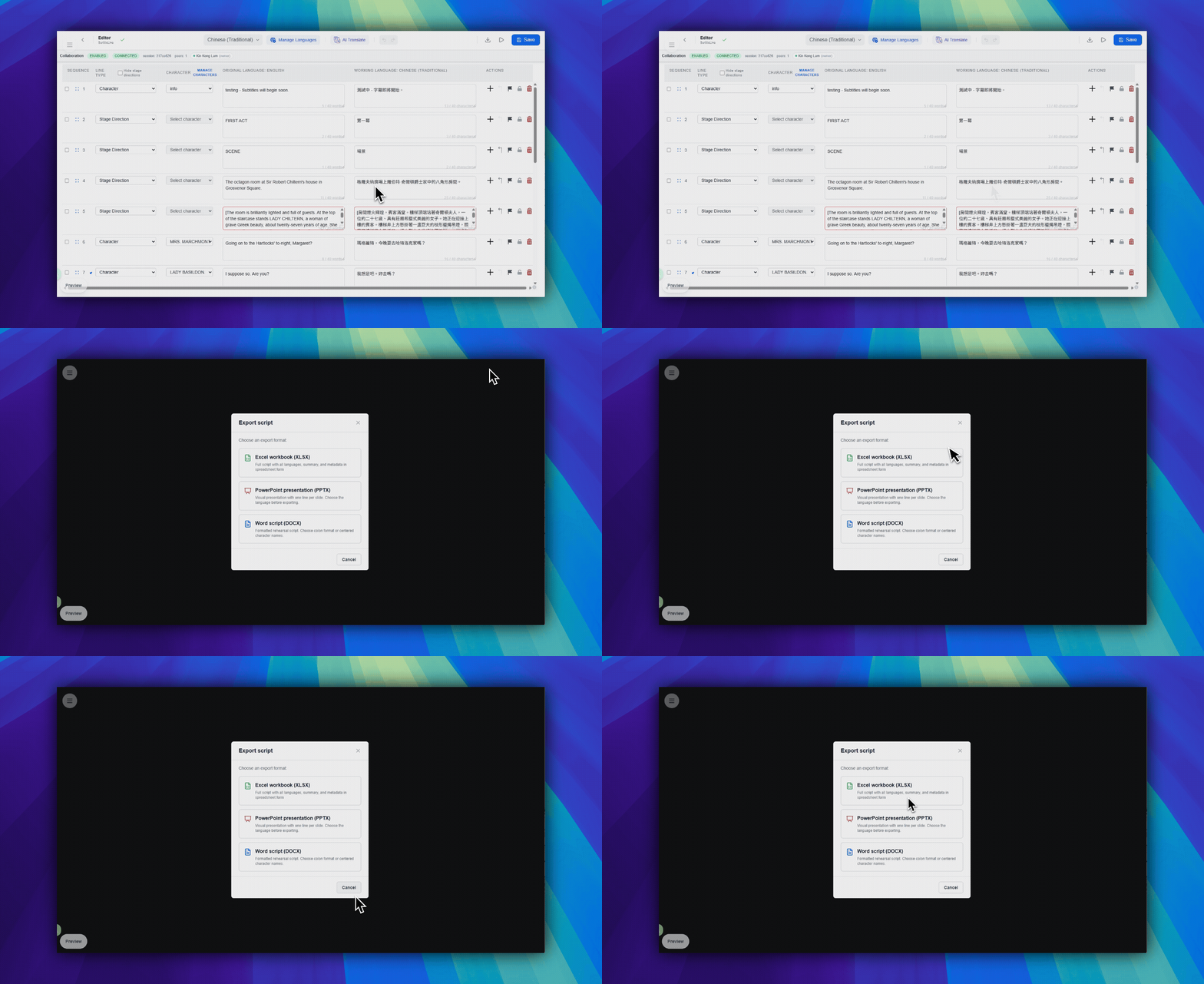
- Open the script in the editor.
- In the Editor top-right toolbar area, click
Download file. This button uses a download-arrow icon. - Select
Excel Workbook (XLSX). - Confirm the export.
This export includes the workbook data and all project languages.
Option 2: PowerPoint
- Open the script in the editor.
- In the Editor top-right toolbar area, click
Download file. - Select
PowerPoint Presentation (PPTX). - Choose one language and any PPTX options.
- Confirm the export.
This is useful when you want a presentation-style backup.
Autosave is not your backup plan
Autosave protects normal editing sessions. Export protects you when you need a deliberate local snapshot.
- Use autosave for day-to-day editing.
- Use export before rehearsal, deployment, or risky bulk changes.
Backup practice: Keep the original DOCX file and one recent exported snapshot.
If another account needs the project
- Keep the original DOCX as the main source.
- Export an XLSX snapshot if you also need the current editor state.
- The receiving account creates a new project and uploads the DOCX again.
Note: Direct project transfer between accounts is not supported.
FAQ
Common questions for this workflow, based on the current Pockitle Cue system.
Do I still need manual backups if the editor auto-saves?+
Yes. The editor auto-saves to cloud storage, but manual exports are still useful as an extra backup and sharing format.
Can I move a project directly to another account?+
No. Direct project transfer is not supported, so the receiving account must recreate the project and use exported material as reference.
Deployment Workflow
Continue In This Workflow
Script preparation, translation workflow, live deployment, operator control, and runtime troubleshooting.
2.10 Restoring Your Project
Restore from original DOCX files or Pockitle Cue-generated XLSX backups through Excel Restore (Test); general XLSX/PPTX import is not supported.
3.1 Using Simulation Mode
Preview prepared languages, then choose live languages and finalize the script.
4.1 How to Deploy Live Subtitles for a Show
Deploy live surtitles by finalizing your script, confirming plan-specific region behavior, setting operator access, and sharing viewer links.