
0.10 Managing Team Members
Change roles, disable access, or remove members from your organization.
Quick Guide
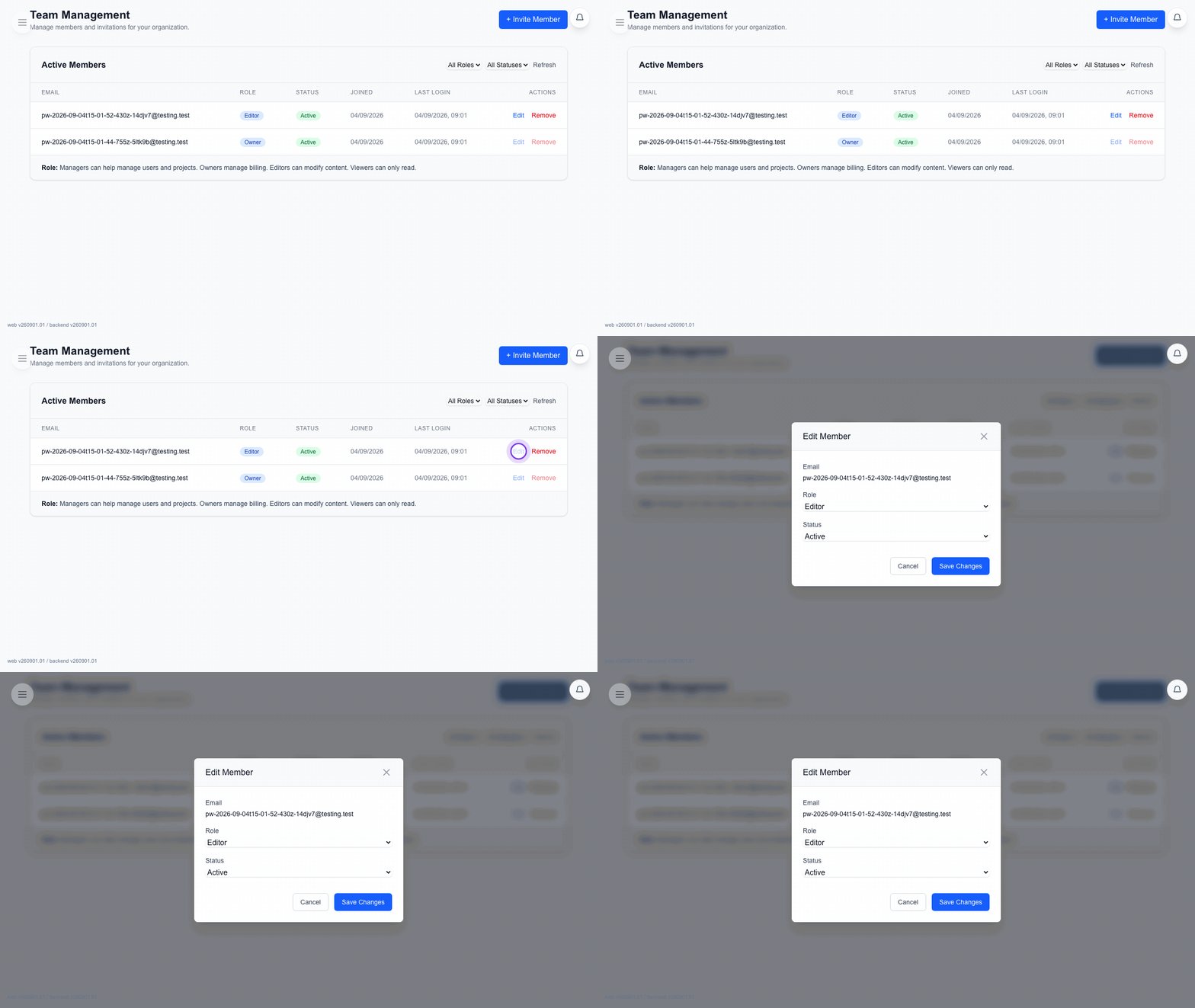
Change a member
- Find the member row in
Active Members. - Click
Editat the right end of that row. - In
Edit Member, change the role or status. - Save the change.
Status values
- Active means the member can use the workspace.
- Disabled means the account stays listed but access is blocked.
Role permissions
- The Owner can edit or remove any non-Owner member. The Owner row has no Edit or Remove action.
- A Manager can edit non-Owner members except other Managers. A Manager can remove only Editors and Viewers.
- These row controls are available only when Team Management is enabled for the plan.
Remove a member
Use Remove at the right end of the member row if the person should leave the workspace completely.
FAQ
Common questions for this workflow, based on the current Pockitle Cue system.
How fast do role changes or removals take effect?+
They take effect immediately, and access to the organization's projects is revoked as soon as the change is applied.
Can the Owner be removed from the organization?+
No. The Owner cannot be removed through normal team-management actions.
Billing Workflow
Continue In This Workflow
Membership, credits, refund requests, codes, and organization or team-management actions tied to account administration.
0.11 Managing Organization Identity
Update your organization name as Owner and review the read-only organization ID.
0.12 Managing Membership, Billing & Credits
Buy or extend an Access Pass, review credits, and manage billing records.
0.13 Viewing Credit Usage
Track AI credit consumption, plan-credit grants, and what happens when you run low.