
1.2 Uploading a Script
Upload a DOCX theatre script to Pockitle Cue, check supported file, unit, and character limits, then prepare it for analysis and editable subtitle cues.
⚡ Quick Guide
Where: Project page → "Upload Script" button
New script format: .docx only
Max Size: 10MB
Limits: Free: 25K units | Lite: 40K | Pro / Pro+: 70K
Steps: Upload Script → choose .docx → confirm original language → Upload and Preview → Continue to Analysis
Open the upload dialog
From a project page, click Upload Script.
- Select a Word .docx file or drag it into the drop area.
- The new-script upload accepts .docx; the separate Restore from Excel (Test) flow accepts its own workbook format.
Script Limits: Maximum file size is 10MB. Scripts are also subject to unit and character limits based on your membership tier:
- Free: 25,000 units / 250,000 characters
- Lite: 40,000 units / 400,000 characters
- Pro / Pro+: 70,000 units / 700,000 characters
Confirm the original language
Use the language selector in the upload dialog to confirm the script's original language before you submit.
- If the language is already right, keep it.
- If not, pick a different language before you continue.
- If Pockitle Cue detects a different language, you may see a language-mismatch confirmation dialog.
Submit the file
Click Upload and Preview. If this project already has analyzed or edited script content, save the work you need first: replacing the script removes its current rows, edits, translations, and language settings.
- Confirm the replacement warning when updating an existing script. This uploads the file and prepares the preview step.
- It does not run the final analysis yet.
- After upload, use Continue to Analysis for the preview and final analysis steps.
Language Detection
If the detected language differs from your selection, you may see a confirmation dialog:
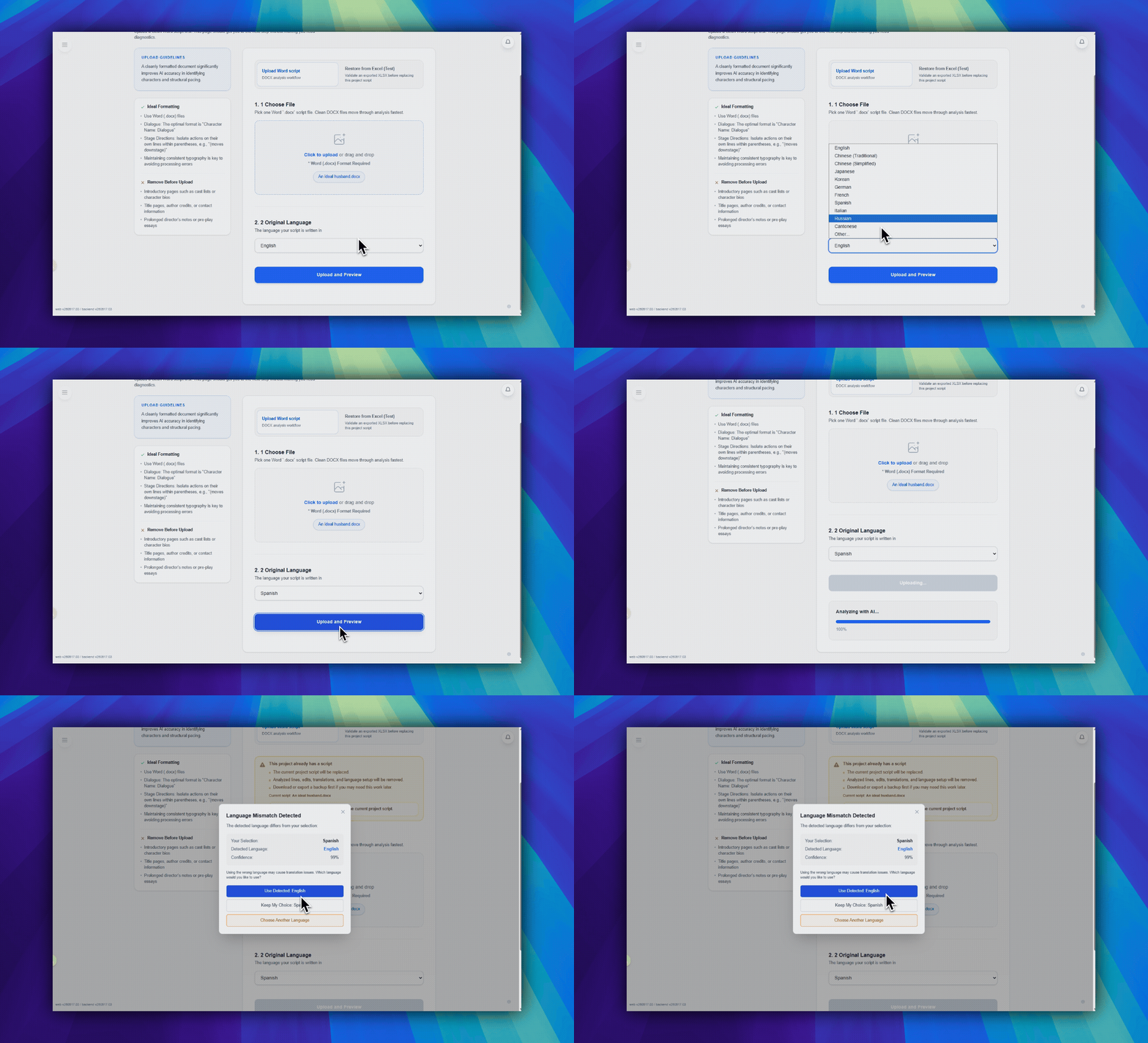
You can choose to use the detected language, keep your original choice, or select a different language.
Script File Tips
For best results:
- Use clear formatting with character names followed by dialogue
- Separate stage directions from spoken lines
- Avoid complex tables or images in the document
- Ensure text is selectable (not scanned images)
FAQ
Common questions for this workflow, based on the current Pockitle Cue system.
Do I need to start analysis separately after upload?+
Yes. Upload starts with Upload and Preview. Then continue to analysis, use Check script for a free estimate, and start full analysis when ready.
Which file format is supported?+
New script upload and analysis accept .docx (Microsoft Word). The separate Restore from Excel (Test) flow has its own workbook format.
Onboarding Workflow
Continue In This Workflow
Account setup, sign-in recovery, first project steps, and invitation acceptance for new users.
0.8 How to Accept a Team Invitation
Accept a team invitation link, handle email verification, and fix the most common account-mismatch blockers.
0.14 Security Alert Actions
Use sign-in alert links to confirm that a sign-in was yours or report it as suspicious.
1.1 How to Use Pockitle Cue: Quick Start Guide
Set up your account, upload a DOCX script, review translations, rehearse cues, and deploy your first show to projection screens and audience phones.