
0.5 Creating a New Project
Create a project, choose its status, and stay within active and archived project limits.
➕ Quick Guide
Start from: The dashed New Project card on the Projects Dashboard
Dialog title: Create Project
Fields: Name, Description, and Status
Open the dialog
On the Projects Dashboard, click the dashed New Project card.
- The card has a large plus icon.
- The dialog title is
Create Project. - The close button is the × icon in the top-right corner of the dialog.
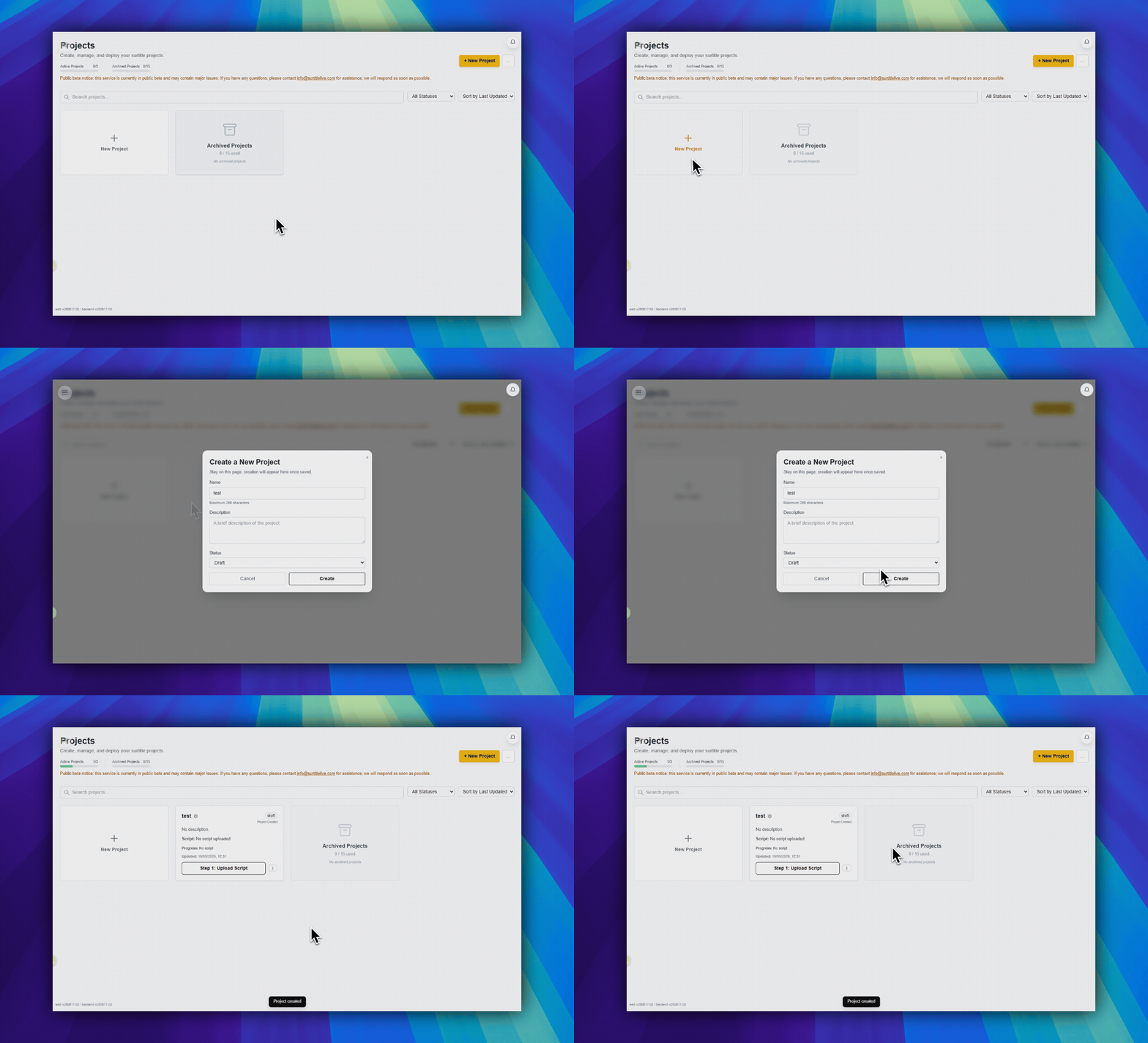
Fill in the fields
- Enter the project Name. This field is required.
- Add an optional Description.
- Choose a Status: draft, active, or archived.
Create the project
Click Create in the dialog footer.
Limits: If your plan has reached a project limit, the dialog shows a warning message and links you to Credits, Membership & Billing.
FAQ
Common questions for this workflow, based on the current Pockitle Cue system.
Why can't I create another project?+
You have likely reached an active or archived project limit. Archive or delete an existing project, or upgrade your plan for more capacity.
Can I change a project's name or status later?+
Yes. Use the project card actions to edit details or switch between active and archived states later.
Onboarding Workflow
Continue In This Workflow
Account setup, sign-in recovery, first project steps, and invitation acceptance for new users.
0.6 Managing Your Projects
Open, edit, archive, unarchive, or delete projects from the dashboard.
1.2 Uploading a Script
Upload a DOCX theatre script to Pockitle Cue, check supported file, unit, and character limits, then prepare it for analysis and editable subtitle cues.
0.8 How to Accept a Team Invitation
Accept a team invitation link, handle email verification, and fix the most common account-mismatch blockers.