
0.9 Inviting Team Members
Invite collaborators, assign roles, and understand team limits on Pro and Pro+.
Quick Guide
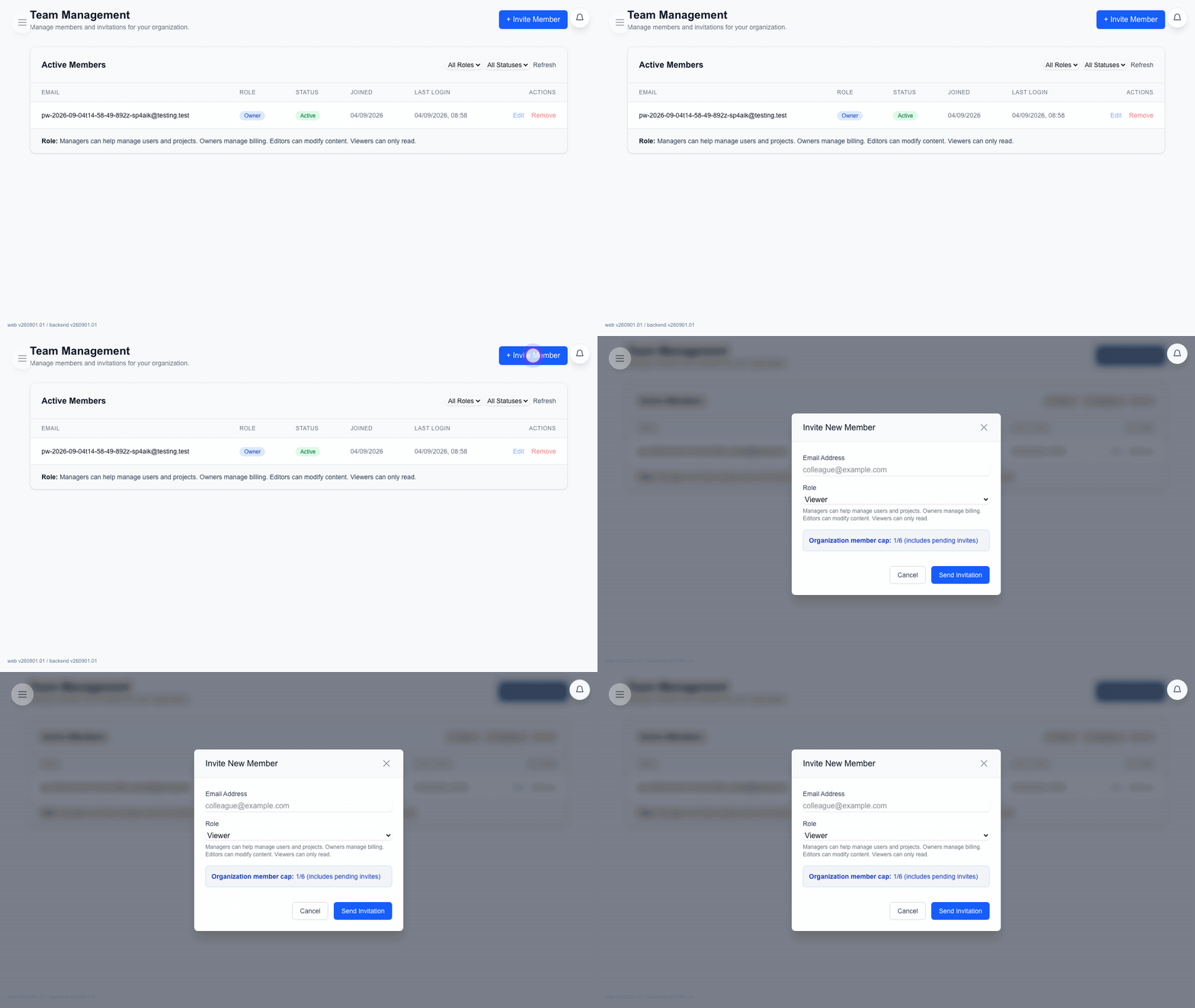
Send an invite
- Open
Team Management. - Click
+ Invite Membernear the top-right area of Team Management. - In
Invite New Member, enter the email address. - Select the role.
- Click
Send Invitationin the dialog footer.
Current limits
- Pro supports the owner plus up to 5 team members.
- Pro+ supports the owner plus up to 10 team members.
- Pending invites also count against the cap.
Pending invites
The pending table shows each invite and its Expires value. Use that table to review what is still waiting.
FAQ
Common questions for this workflow, based on the current Pockitle Cue system.
Why can't I invite team members on my current plan?+
Team invitations are part of Pro and Pro+ team management.
Can Managers invite other Managers?+
No. Managers can invite Viewers and Editors, while Owners handle Manager invitations.
Billing Workflow
Continue In This Workflow
Membership, credits, refund requests, codes, and organization or team-management actions tied to account administration.
0.10 Managing Team Members
Change roles, disable access, or remove members from your organization.
0.11 Managing Organization Identity
Update your organization name as Owner and review the read-only organization ID.
0.12 Managing Membership, Billing & Credits
Buy or extend an Access Pass, review credits, and manage billing records.