From Word or Excel to the Stage Mac: Preparing and Running Surtitles in Pockitle Cue and QLab 5
SurtitleLive is now Pockitle Cue.
A theatre production rarely starts tech week with a finished cue list.
A stage manager may begin with a raw rehearsal script in Word (.docx) that has never been translated or split into titles. A translator on another production may send back a finished Excel (.xlsx) table. Both teams usually face the same moment before technical rehearsal: how to turn a working document into reliable cues for Mac stage projection and QLab 5 without losing changes when lines move later.
In our earlier guide on turning Excel and TXT scripts into QLab subtitles, we looked at how AppleScript can generate QLab Text cues from a spreadsheet. That solves initial creation, yet the show file still tends to drift away from the script once translation edits begin.
A QLab show file and a rehearsal spreadsheet are good at different jobs. Neither was built to track line-by-line script revisions across a theatre team.
That is why Pockitle Cue keeps the script and translations in the browser while Pockitle Cue Station carries the finished cues onto the Mac running your projectors and QLab 5.
Start from a raw Word script or an existing spreadsheet
Not every show arrives at the same stage of readiness. Pockitle Cue handles three common starting points and brings all of them into the same Editor.
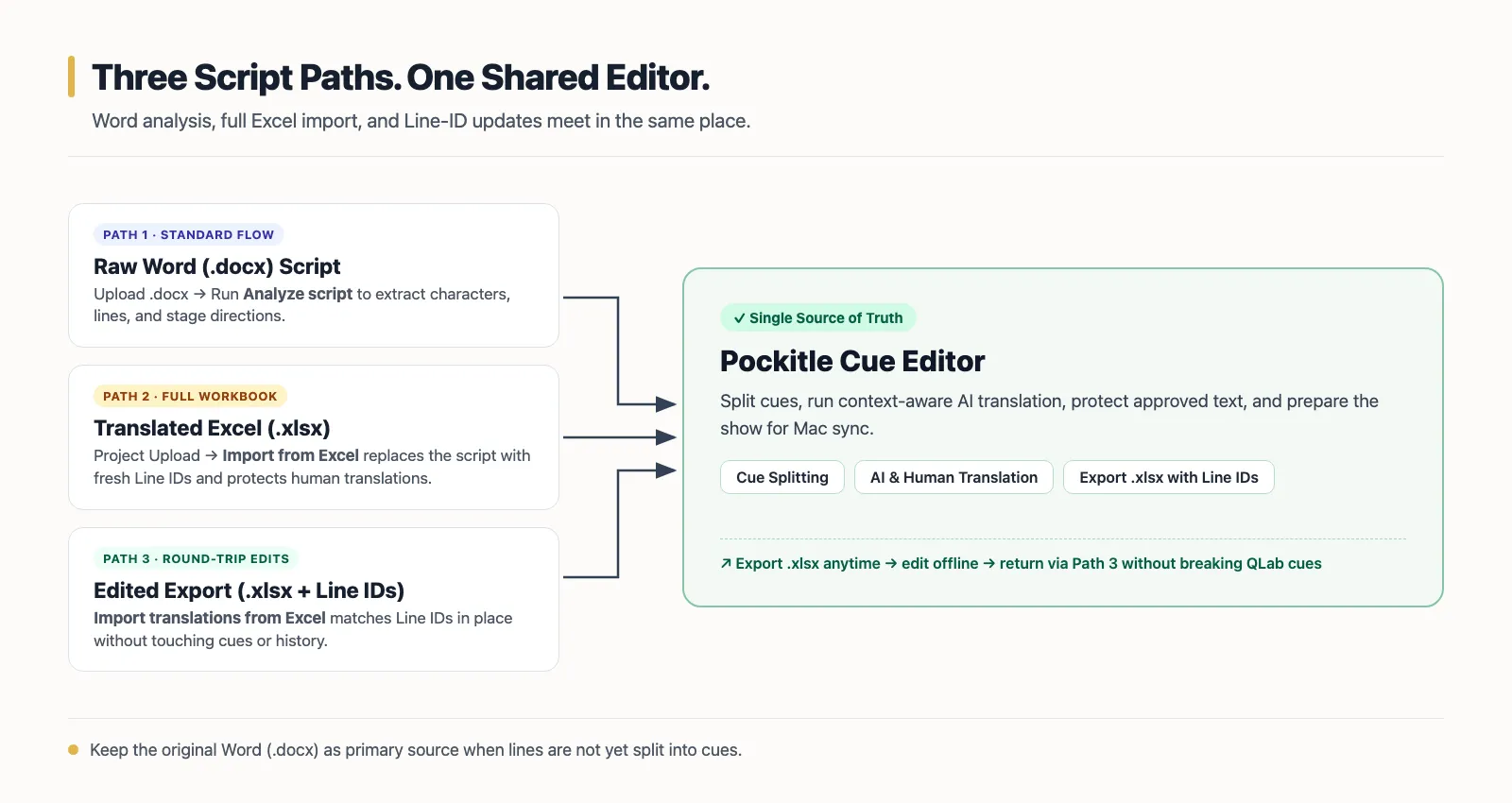
Figure 1. Starting from Word (.docx) or Excel (.xlsx) leads to the same reviewed script in Pockitle Cue Editor.
When you only have an untranslated rehearsal script, keep the original Word .docx file as your primary source. Upload it to your project and run Analyze script so the system can separate speaker names, dialogue, and stage directions automatically. Inside Pockitle Cue Editor, you can then split long speeches into readable cues, translate them with context-aware AI, or export an .xlsx copy for a human translator.
When a translator has already built a spreadsheet, use Import from Excel on the project upload page (or select Download the Excel template there to start from an example workbook). Pockitle Cue expects plain cells with no merged cells and one row per line under a header row—with Column A for the character name (left blank for stage directions), Column B for source text, and Columns C onward for one translation language each—and recognizes older line-type templates as well:
| Role (Column A) | Source (en) (Column B) | Translation (ja) (Column C) | Translation (zh-Hant) (Column D) |
|---|---|---|---|
| (leave blank for stage direction) | A quiet garden at dawn. |
夜明けの静かな庭。 |
黎明時分,寧靜的花園。 |
ALICE |
Is anyone there? |
誰かいるの? |
有人在嗎? |
You check the file, confirm each column’s language, and review a sample preview before confirming replacement. By default, Protect imported translations stays turned on so later AI passes do not overwrite approved human wording, and an optional Check script with AI pass can attach review notes without rewriting your lines.
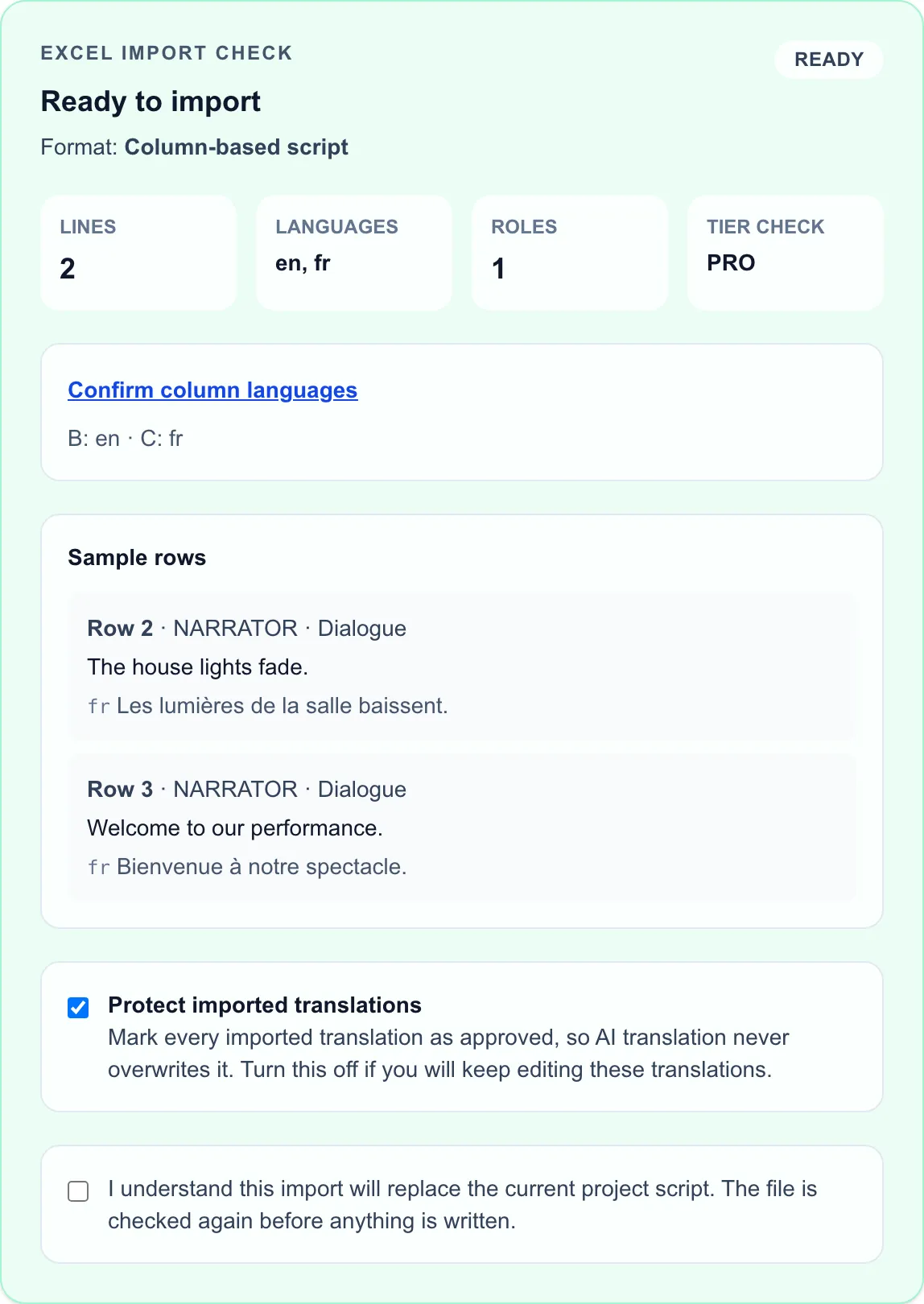
Figure 2. Reviewing the Excel preview and translation protection before confirming a full script import.
Update translations later without breaking cue structure
Once rehearsal begins, replacing the entire script from Excel is rarely what you want. A full import creates fresh Line IDs, which resets how the Editor tracks existing cues.
Instead, export the current project as an Excel workbook directly from the Editor’s Download file menu. Free plans export a trial copy of the first 30 saved cues; Lite, Pro, and Pro+ plans export the full script, with a Line ID recorded in every row.
Translators can revise wording inside those translation columns—leaving the Line ID column intact—and send the file back into the Editor via Import translations from Excel. Pockitle Cue previews every row, skips approved translations unless you explicitly choose to replace them, and updates only the translation text. Your source lines, row order, cue splits, and line history stay in place.
One synced package on the show Mac
Once the script is ready in the browser, open Pockitle Cue Station on the Mac connected to your venue displays and click Sync on the show list.
Syncing downloads a verified show package to that Mac. As long as that local package remains valid, local stage projection and QLab preparation do not depend on a continuous booth internet connection. Audience phones still rely on cloud delivery, so venue connectivity continues to matter for mobile viewers—even when the stage projector runs entirely locally.
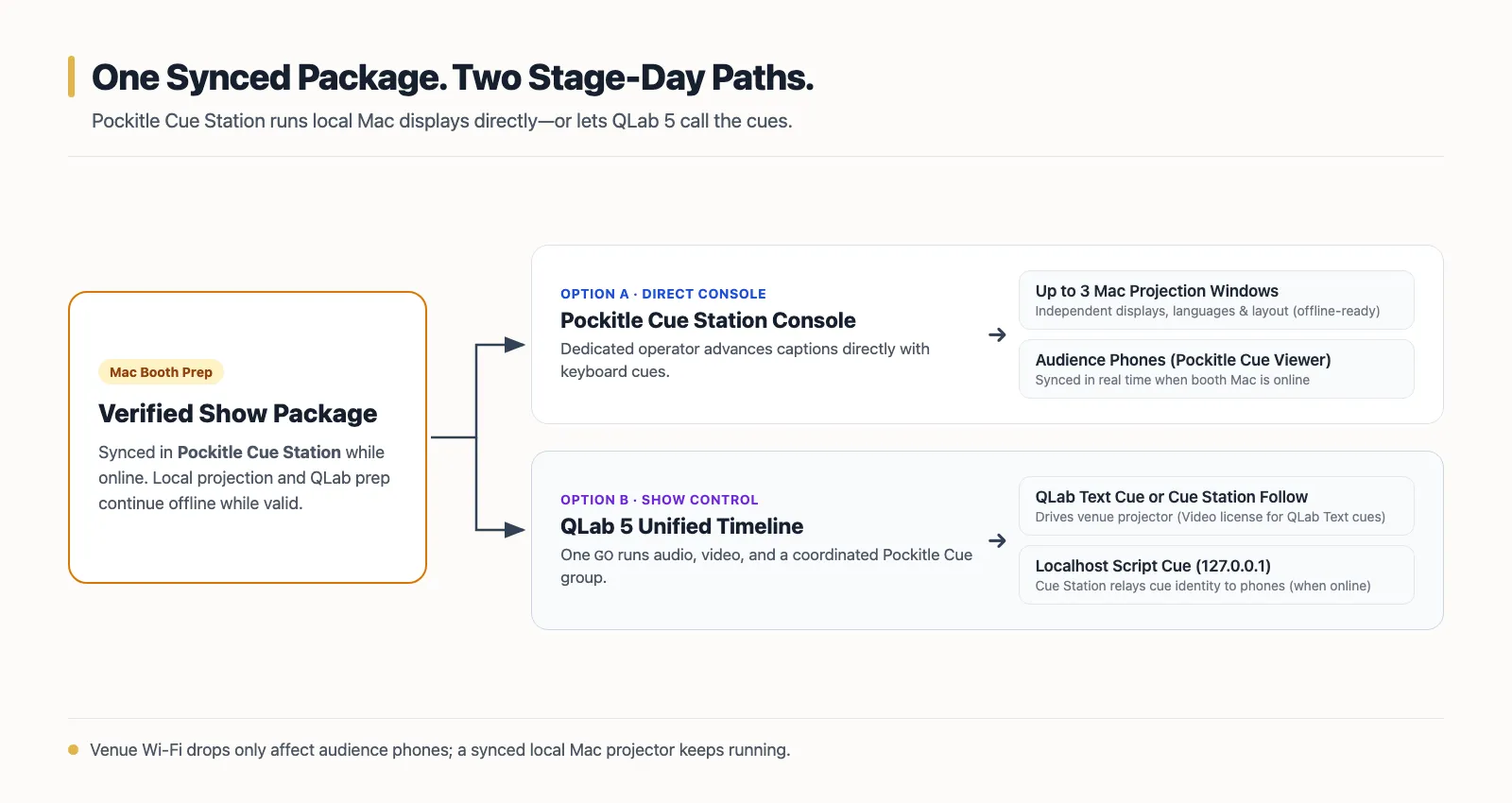
Figure 3. Two ways to run the same verified show package on stage day: direct Mac projection or QLab 5.
Run up to three local Mac screens without QLab
If a dedicated operator calls surtitles from the script, Pockitle Cue Station replaces both PowerPoint decks and fragile browser windows.
In Settings → Outputs, you can configure up to three independent stage or confidence outputs on connected Mac displays, each with its own language mix, font size, margins, and position. Built-in Show Test Card and Test Projections controls let technicians verify framing on the actual house projectors before doors open.
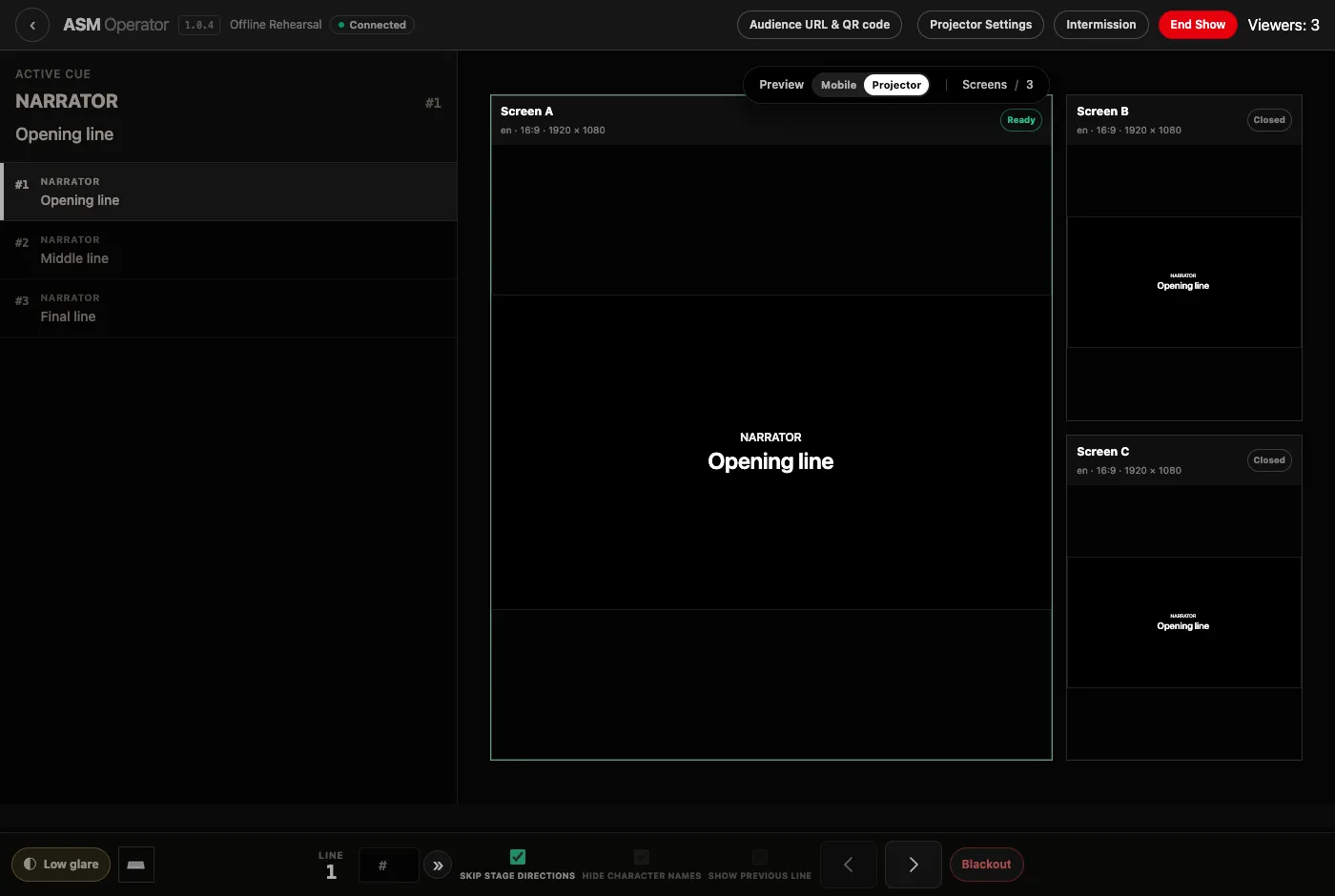
Figure 4. Running the performance directly from the Pockitle Cue Station console on macOS.
When unlocked for Live, keyboard cues drive the local display windows directly with no round-trip through the cloud, while audience phones on the Pockitle Cue Viewer link follow along whenever the booth Mac is online.
Place and update cues directly inside QLab 5
For shows where one technician calls sound, video, lighting, and surtitles from QLab 5, Pockitle Cue Station integrates straight into your open QLab workspace.
You need QLab 5 open on the same Mac with a saved, editable workspace, macOS Automation permission granted on first use, and the show out of Live (Prepare cues for QLab stays read-only throughout a live performance, including intermission). While the synced package stays valid, preparing QLab cues works offline without re-entering credentials.
Inside Prepare cues for QLab, select the captions you want and drag any selected row straight into the QLab cue list—or click the destination cue in QLab and choose Send to QLab…. Both actions handle mixed selections: new cues are inserted at the chosen point, and any already-placed cues in the selection are updated in place.
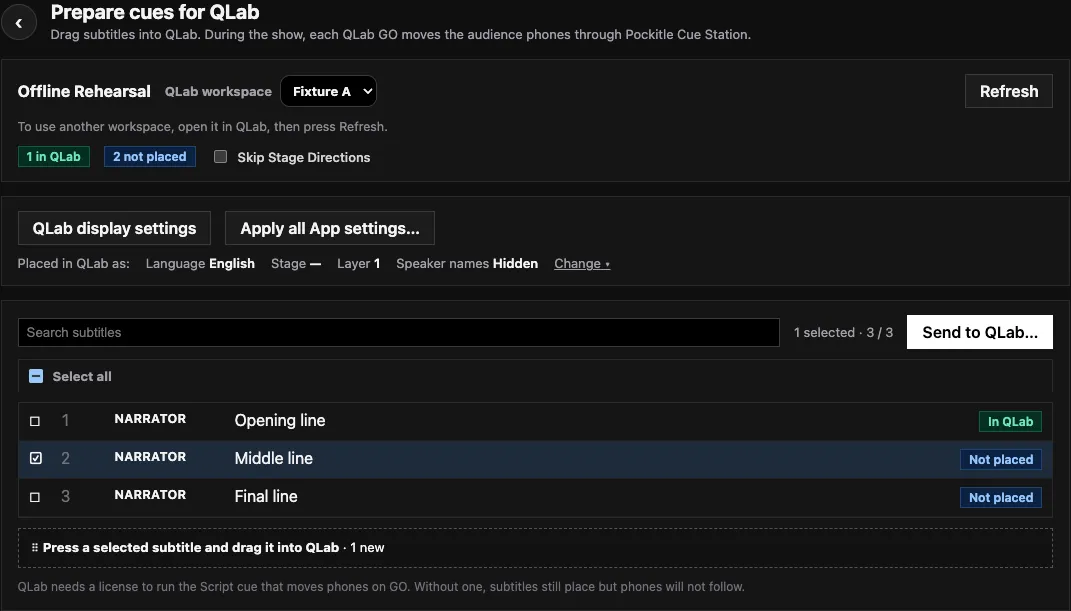
Figure 5. Selecting prepared cues in Pockitle Cue Station to place or update them in QLab 5.
For each subtitle moment—including automatic Blackout cues wherever your script has a clear gap—Pockitle Cue Station builds a coordinated QLab group (Pockitle Cue #1, Pockitle Cue — Blackout after #1):
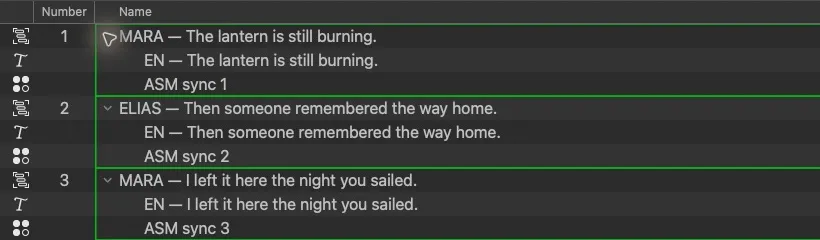
Figure 6. Inside each generated QLab group, a Text cue drives QLab video output while a localhost Script cue notifies Pockitle Cue Station.
A single QLab GO fires the Text cue (requiring a QLab Video license) and a local Script cue on 127.0.0.1 (requiring a Script-capable QLab license) so Pockitle Cue Station follows QLab’s timeline and updates audience phones when online. If you prefer QLab to trigger cues while Pockitle Cue Station draws the stage projectors, simply leave Cue Station’s projection windows open during Live and disable or mute QLab’s Text children.
Keep QLab intact when lines change before curtain
Rehearsal notes arrive until the last hour. When the director rewrites five lines in Pockitle Cue Editor, you do not rebuild your QLab show file from scratch.
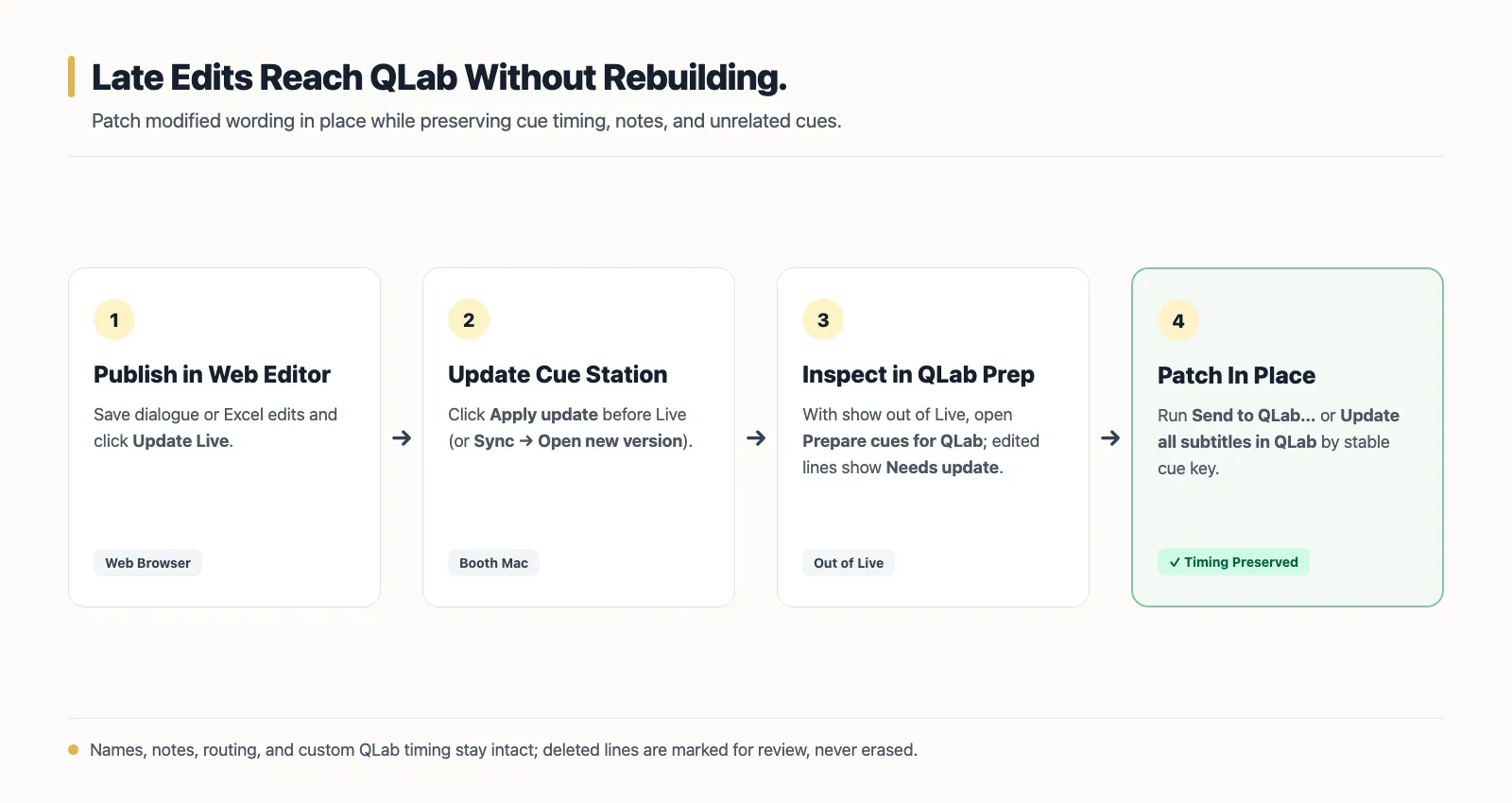
Figure 7. Propagating late script changes into an existing QLab workspace without rebuilding cues.
Save the revision in the Web Editor and submit Update Live. If Pockitle Cue Station’s console is open and online, Update subtitles appears in the toolbar so you can apply the update before Live or during Intermission—or you can click Sync on the show list and choose Open new version after closing the active run.
Updating captions inside Pockitle Cue Station never rewrites QLab behind your back. When the show is out of Live, open Prepare cues for QLab; edited rows appear as Needs update. Choose Send to QLab… or Update all subtitles in QLab to patch the changed lines by stable cue key.
Ordinary text updates compare wording only. Your QLab cue names, operator notes, fonts, colors, screen routing, and unrelated sound or lighting cues remain untouched. If a Pockitle Cue group has custom wait or group timing inside QLab, an ordinary text update stops and warns you rather than overwriting it, and captions deleted from the script are marked for review in QLab instead of vanishing silently.
Confirm three things separately before house open
When preparing a Mac and QLab booth, one clean signal never proves the whole chain:
| Signal | What it confirms | What it does not confirm |
|---|---|---|
In QLab status |
Cue Station read the cue identity back from the open QLab workspace. | That QLab has an active Video or Script license, or that a projector is outputting video. |
| Local projection window | Your Mac output routing, fonts, and line wrapping work on the physical display. | That audience mobile viewers can reach the cloud. |
| Cloud ACK and test phone | The booth Mac is online and the Pockitle Cue Viewer link updates on audience phones. | That the stage projector signal is live. |
Excel spreadsheets, Word scripts, and QLab timelines all belong in theatre production—each in the place where it works best. When Pockitle Cue holds the reviewed text and Pockitle Cue Station connects it cleanly to Mac projection and QLab 5, late edits stop feeling like an emergency before curtain.
Learn more: Pockitle Cue Station for Mac · Prepare cues for QLab user guide · Pockitle Cue Editor
Key Takeaways
- Pockitle Cue routes raw Word (.docx) analysis, full Excel (.xlsx) imports, and Line-ID translation updates into one reviewed Editor.
- Pockitle Cue Station syncs a verified show package to macOS to run up to three local projection windows offline while syncing audience phones when online.
- With the show out of Live, Prepare cues for QLab lets operators drag rows into QLab 5 or click Send to QLab… to create synchronized Text, Script, and Blackout groups.
- In-place QLab updates patch modified wording by stable cue key while preserving cue names, operator notes, styling, routing, and custom QLab timing.
Frequently Asked Questions
Should I start a Pockitle Cue project from Word (.docx) or Excel (.xlsx)?
If you have an untranslated rehearsal script, upload the Word (.docx) file as your primary source and run Analyze script to extract characters, dialogue, and stage directions automatically before splitting and translating cues in the Editor. If a translator has already prepared a role-first spreadsheet, use Import from Excel on the project upload page.
How do I update Excel translations without breaking existing cue splits?
Export the current project as an Excel (.xlsx) workbook from Pockitle Cue Editor so every row keeps its Line ID, edit only the translation columns, and return it via Import translations from Excel to update wording in place without changing source text or cue order.
Can I project surtitles from a Mac without QLab?
Yes. Sync the show package in Pockitle Cue Station on macOS, configure up to three physical displays in Settings -> Outputs, and run cues locally from the Live Console even if venue internet drops.
How do late edits in Pockitle Cue Editor reach QLab 5 without rebuilding cues?
Save edits and submit Update Live in the Web Editor, then sync or apply the update in Pockitle Cue Station. With the show out of Live, open Prepare cues for QLab where changed lines show Needs update and patch them in place with Send to QLab… or Update all subtitles in QLab.
Glossary
- Analyze script: The structured import step for raw Word (.docx) scripts that separates speakers, dialogue, and stage directions before cue editing and translation.
- Line ID Round-Trip Update: Exporting an Excel (.xlsx) workbook from Pockitle Cue Editor with stable Line IDs and re-importing revised translations via Import translations from Excel without disturbing source lines or cue splits.
- Pockitle Cue Station: The macOS show-time companion to Pockitle Cue that stores verified show packages locally for up to three projection outputs and integrates with QLab 5.
- In-Place QLab Update: Patching revised subtitle wording inside an existing QLab 5 workspace by stable cue key (run out of Live) while keeping cue names, operator notes, routing, and custom timing intact.
- Verified Show Package: The local bundle downloaded to Pockitle Cue Station on macOS via Sync so local stage projection and QLab preparation continue offline while valid.