

Pockitle Cue for MacComing soon
Surtitle projection that keeps running on your Mac.
Pockitle Cue for Mac is the macOS app for your projection computer. Sync a finalized show while you are online, then run the same Pockitle Cue Live Console, projected surtitles (supertitles), and QLab cueing from the Mac, without depending on venue internet for the room screen.

Projection without venue internet
Synced shows are verified and stored encrypted on the Mac, so the projector keeps following your cues if the network drops.
Up to three screens
Drive a main projector, a side screen, and an LED strip at once, each with its own language, size, and aspect ratio.
Built for QLab
Drag subtitles straight into a QLab cue list and let a QLab GO move the surtitles and the audience phones.
The Live Console you already know
Pockitle Cue for Mac runs the same Operator Cockpit as Pockitle Cue in the browser: the active cue, the cue list, and the previews for every screen. Advance from the keyboard, jump to any line by number or text, black out the screen, or start an intermission.
- Keyboard-first cueing with jump-to-line recovery
- Blackout and intermission controls
- Low-glare mode for dark booths
- Live previews of every connected screen
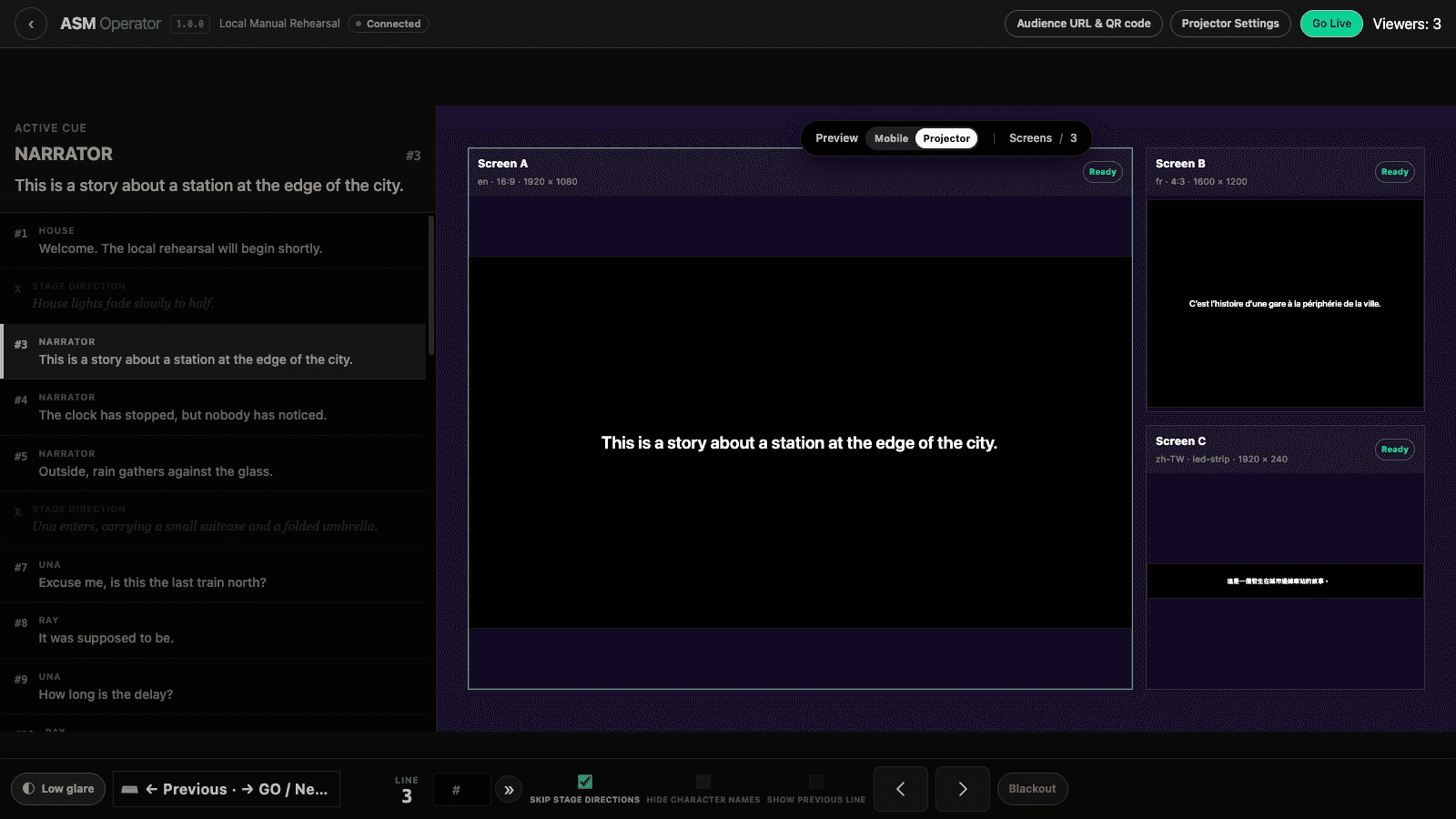
One cue, up to three screens
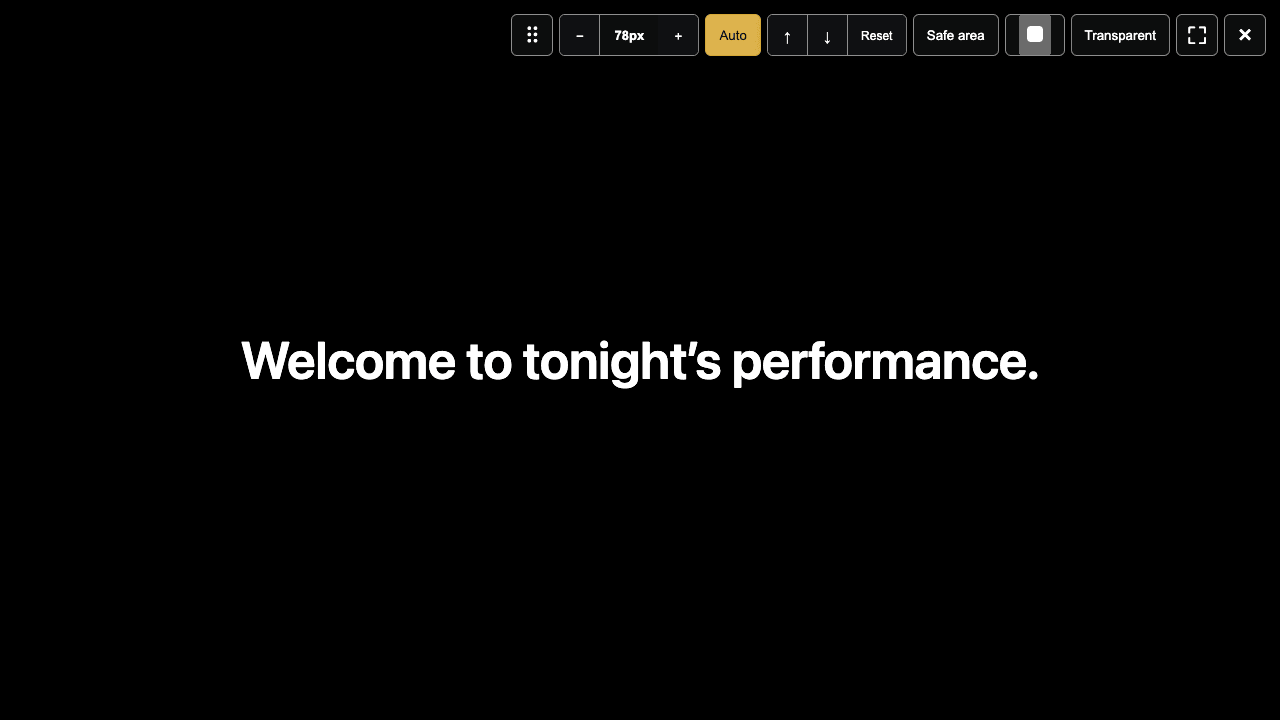
Map each output to a display and give it its own language, size, and aspect ratio: English above the stage, a second language at the side, and a thin LED strip, all following one cue. Outputs open full screen on the displays you choose, and a toolbar at the top edge lets you adjust text colour or make the background transparent to overlay other video.
- Per-screen language and display mapping
- Full-screen outputs with a top-edge toolbar
- Transparent background for overlays
- Text colour changes previewed live
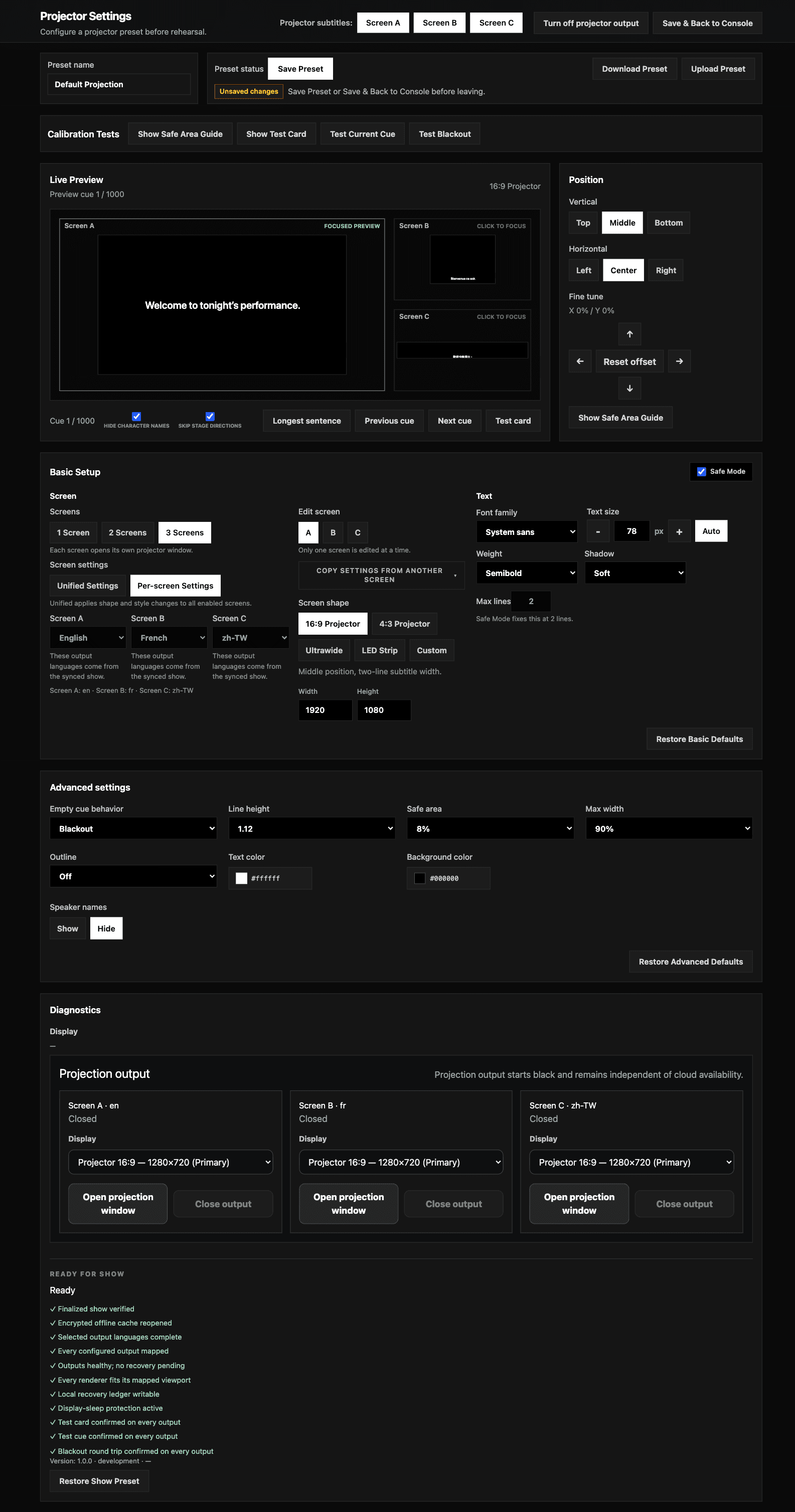
Projector Settings, with a real preview
Set font size, line height, colours, outline, safe area, and position before the audience arrives. Preview the longest line of the show so nothing overflows, and check the room with a test card and blackout before Go Live. Settings are saved on the Mac for each show.
- Longest-line preview to prevent overflow
- Test card, safe area, and blackout checks
- Per-show settings saved on the Mac
- The same settings as Pockitle Cue on the web
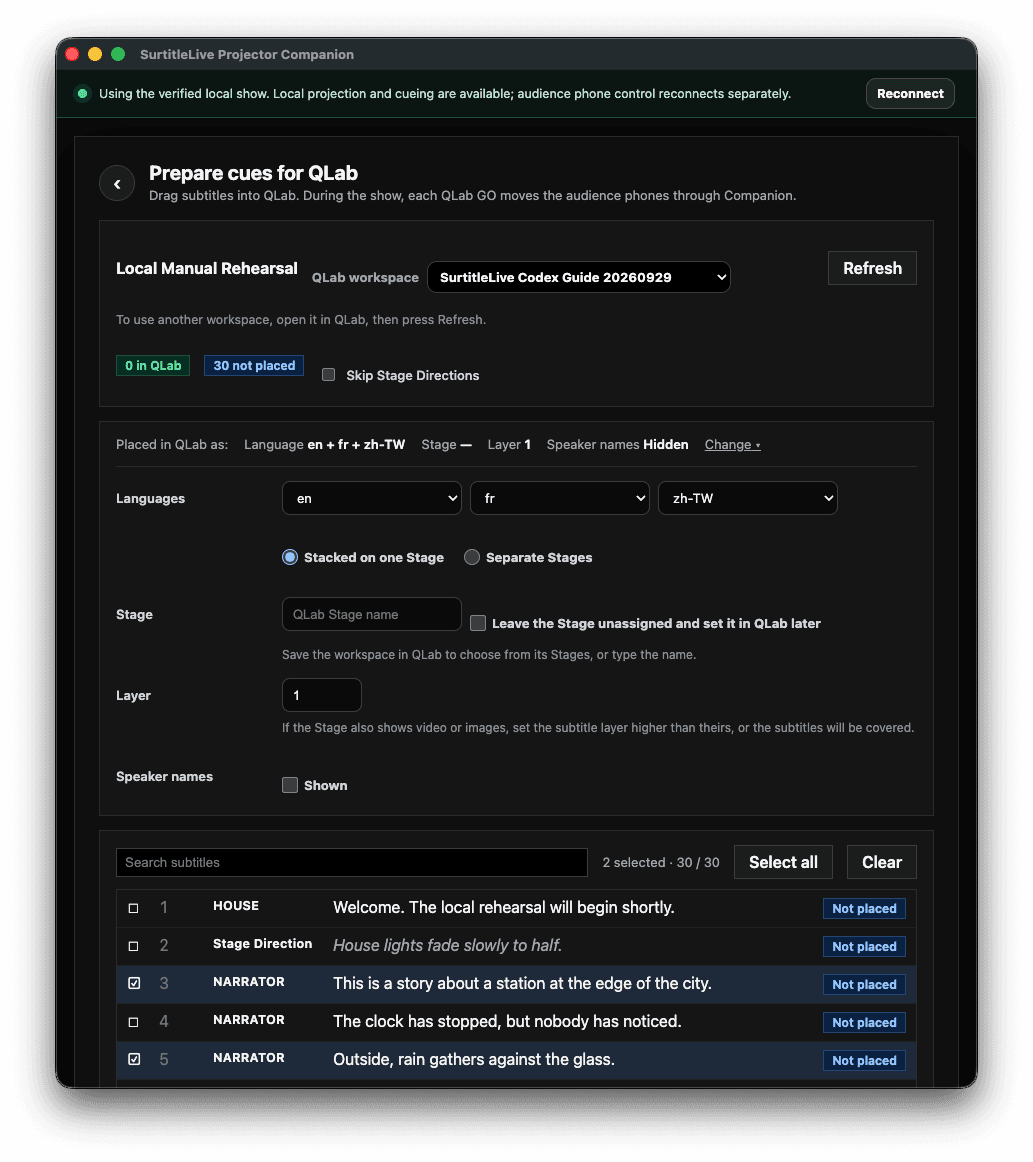
Put subtitles into QLab by dragging them
Select subtitles in Pockitle Cue for Mac and drag them onto a QLab cue list. Each becomes a cue in your show file, and dragging again updates the existing cues in place instead of duplicating them. During the show, a QLab GO can move the Pockitle Cue for Mac screens and the audience phones together, so the operator runs one cue stack.
- Drag one or many subtitles into a QLab 5 cue list
- Re-drag updates cues in place, never duplicates
- QLab GO follows into Pockitle Cue for Mac and the audience phones
- Accessibility captions keep their bracketed format
Audience phones stay optional
Projection works on its own. When a production also wants personal language choice, connect the show to Pockitle Cue Cloud and audience members follow the same live cue on their phones through the audience link or QR code. Phones need internet; the Pockitle Cue for Mac screens do not.
- Audience URL and QR code from the Console
- Phones follow the same live cue
- Projection continues if phones disconnect
How it works
- 1Prepare, translate, and finalize the show in Pockitle Cue on the web.
- 2Sign in to Pockitle Cue for Mac and choose Sync to this Mac while you are online.
- 3Open the Live Console and unlock it with the show's operator password.
- 4Map the outputs to your projectors or LED screens and check them in Projector Settings.
- 5Go Live and cue the performance, from Pockitle Cue for Mac or from QLab.
Browser Projection Mode or Pockitle Cue for Mac?
| Projection Mode in the browser | Pockitle Cue for Mac | |
|---|---|---|
| Install | Nothing to install | macOS app on the projection computer |
| Venue internet drops | Already-open windows keep responding; reopening needs internet | Synced shows keep projecting from the Mac |
| Screens | Projector window per screen | Up to three mapped outputs with their own language and aspect ratio |
| QLab | Export a QLab import pack | Drag subtitles into QLab; QLab GO follows into Pockitle Cue for Mac and phones |
| Overlay | Opaque window | Transparent background option |
Projecting from a browser? Set up Projection Mode in the browser
What you need
- A Mac running macOS 12 Monterey or later, connected to the projectors or LED screens.
- A Pockitle Cue account and a finalized, deployed show to sync.
- QLab 5 for the QLab features; a QLab licence is needed for GO to move audience phones.
Common questions
Does Pockitle Cue for Mac work without internet?
Sync the show while you are online. After that, Pockitle Cue for Mac screens keep following your cues from the Mac even if the venue internet drops. Audience phones and cloud features still need internet.
Do I still need Pockitle Cue on the web?
Yes. Scripts, translations, reviews, and deployment stay in Pockitle Cue on the web. Pockitle Cue for Mac receives the finalized show and runs it on the projection computer.
How does Pockitle Cue for Mac work with QLab?
Drag subtitles from Pockitle Cue for Mac onto a QLab 5 cue list to create cues, and drag again to update them without duplicates. During the show, a QLab GO can move Pockitle Cue for Mac and the audience phones, which requires a QLab licence for the Script cue.
Is there a Windows version?
Not yet. Pockitle Cue for Mac is a macOS app. On other computers, use Projection Mode in the browser.
Is my show content protected on the Mac?
Shows are signed by Pockitle Cue, verified before use, and stored encrypted. The Live Console is unlocked with the show's operator password.