
Prepare and follow QLab cues
Select multiple subtitles, send them to QLab, and understand follow mode.
Prepare cues for QLab
Purpose: Create or update captions from a deployed show in a local QLab workspace for show control.
How to open this page: From the show card, open More ways to open and select Prepare cues for QLab. When available, the same page can also be opened from Live Console.
Before you begin: Install and open QLab 5, and save an editable workspace. Sign in to Pockitle Cue for Mac, sync and unlock the show, and keep the show out of Live. On first use, allow Pockitle Cue for Mac to control QLab in macOS System Settings → Privacy & Security → Automation.
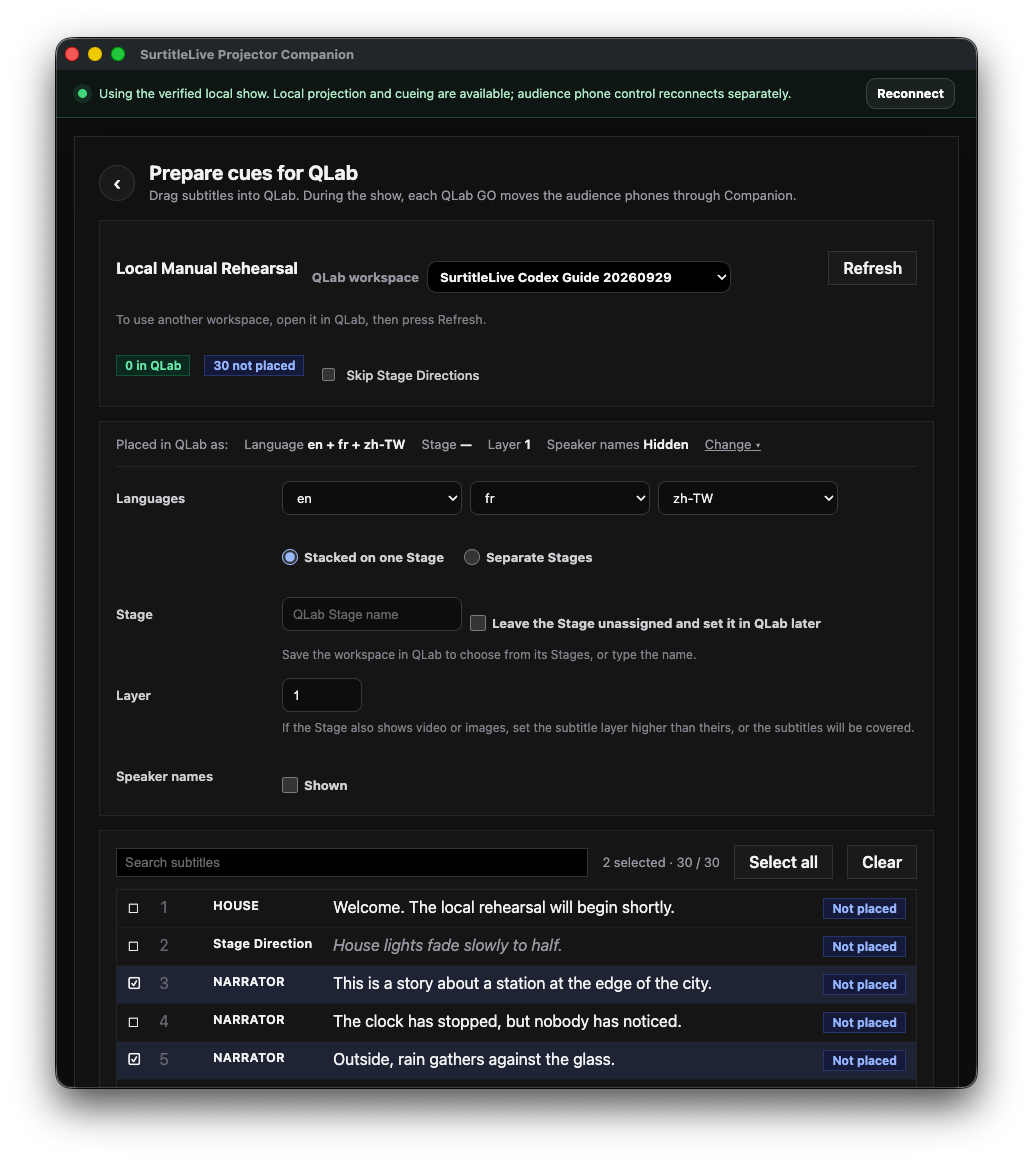
Choose a workspace, format, and captions
- From Console, select
Prepare cues for QLab. Choose the workspace underQLab workspace, then selectRefreshto read QLab’s state. - Expand
Changeto choose the primary, second, and third languages; whether to use the same or separate Stages; the Layer; whether character names appear; and whether stage directions are skipped. - Search cue text or numbers under
Search subtitles. Click each row to select or deselect cues one by one. You do not need Command or Shift. - Shift-click is an optional range-selection shortcut. You can also press Space or Enter to toggle the focused row.
Select allselects every cue in the current language, search, and filter results, not just the visible page. The list shows up to 200 rows per page; usePreviousandNextto change pages.
Drag new cues, then check In QLab
- Read the footer, for example
Drag 2 new. Start dragging from any selected new cue to the target Cue List in QLab. Pockitle Cue for Mac includes the whole current selection. - If the selection includes cues already placed or needing an update, read the counts in the footer first. Native drag and drop creates new cues. Use
Send insteadonly when the interface explicitly offers it as an alternative to unsupported native drag and drop. - Return to Pockitle Cue for Mac and select
Refresh. After QLab readback, check each row:Not placedmeans no cue was found;In QLabmeans it was identified in the selected workspace;Needs updatemeans the workspace has older content. - Select placed cues that need an update and choose
Update selected. UseUpdate allwhen appropriate. Updating changes identified cues; it is not a playback record. - In QLab, check the Cue List, Stage, language, text, character, and cue count. Rehearse GO separately.
Selection, filters, and recovery
- Dragging from any selected row drags the entire current selection, not just the row under the pointer. Before dragging, check the selected count and footer.
- Changing search, language, Stage Directions filter, workspace, or show version clears the selection. Changing pages does not. Select all applies to all filtered results, not only the 200 rows on screen.
- If a cue remains Not placed, check the QLab workspace and drop location, then Refresh. If native drag and drop is unsupported, use only a Send action that Pockitle Cue for Mac actually displays.
Prepared does not mean played
In QLab means Pockitle Cue for Mac read back the cue identity from the selected workspace. It does not mean QLab is playing, GO was triggered, or a phone received a caption.
QLab GO follow, permissions, and manual control
- QLab 5 needs a license that allows Script cues to drive phone captions. QLab Text cues for projection require the Video license. First-time use also requires macOS Automation permission. See the official Script Cues and Text Cues documentation.
- While Live, Pockitle Cue for Mac checks cue-set match, QLab receiver, show / Blackout state, and phone sync state to decide whether it can follow. This native interface has no Test or Arm button; use the displayed follow status and checks.
- Select
Switch to manualto stop QLab GO from moving phones. SelectFollow QLab againto resume following. If a cue is outdated, selectGo to Prepare cues for QLabto update or check it, then return to Live.
Expected result and audience impact: Prepare changes the selected QLab workspace. Verify native drag and drop by refreshing and reading back. GO may advance phones only when Receiver and phone sync status allow it. Placing a cue does not mean it played or reached a phone.
If something goes wrong: If no workspace appears, create and save one in QLab. For Automation denied, allow Pockitle Cue for Mac to control QLab and select Refresh. If status stays at checking or a generic failure, leave cues unplayed, return to Shows, and reopen the Prepare page. If it still fails, report the support code instead of repeatedly dragging cues.