
Run the Live Console
Unlock, go live, advance cues, check phone control, and end a performance.
Live Console: advancing cues and show control
Purpose: Operate the current cue and check local projection, phone control, and cloud response.
How to open this page: On the show card, select Open Live Console, enter that show’s ASM password, then select Unlock ASM. Online, account sign-in provides the cloud list and Sync; this show-specific password admits the deployed show. A valid synced package and offline credentials can allow local admission without an active account session.
Before you begin: Open and unlock the show. If you plan to project, open each output you intend to use and confirm that each is Ready. Phone-only operation can Go Live without a projector window. Rehearsal warnings may remain, but a Blocked readiness state prevents Go Live.
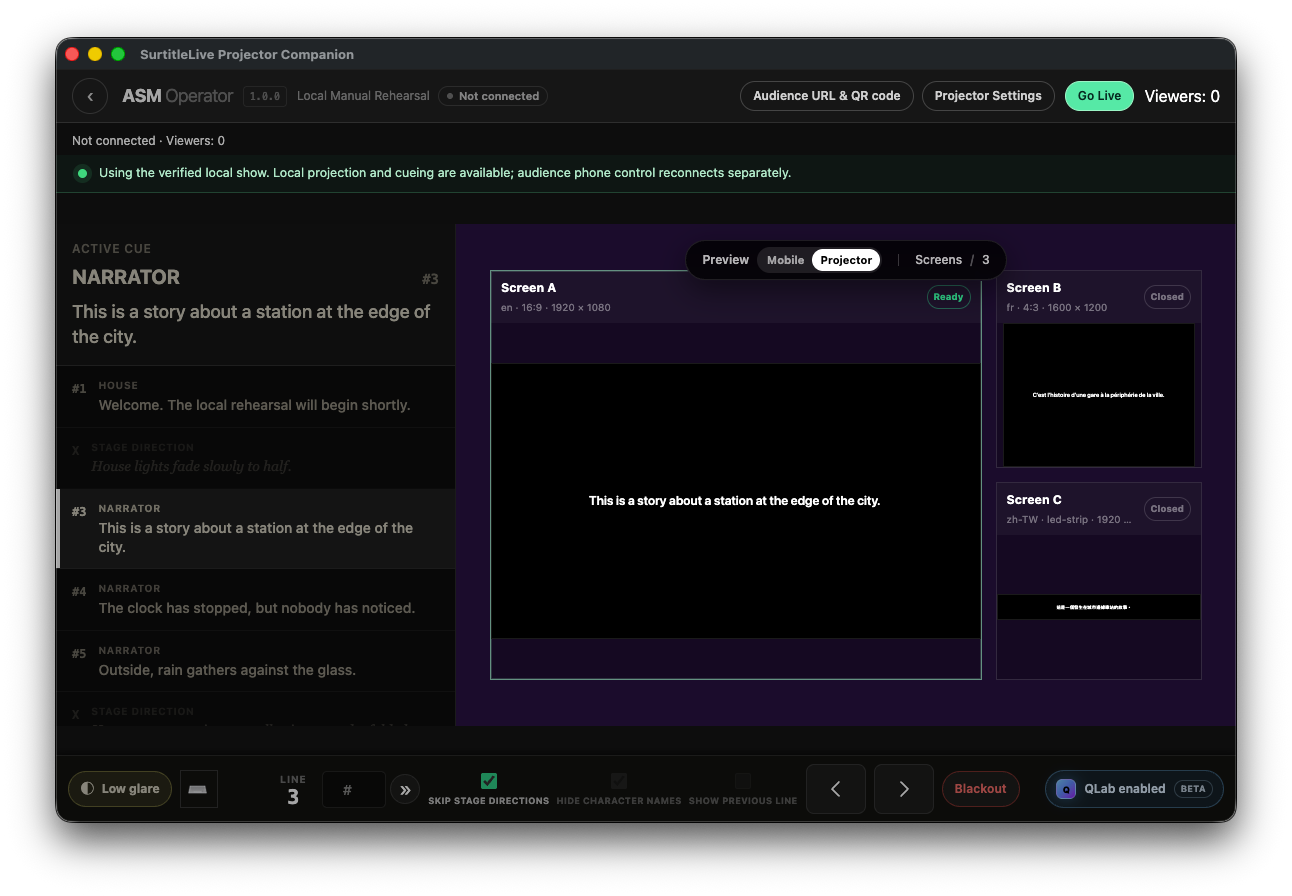
What is on the screen
- Current caption / cue: shows the current cue, number, and character name. Next, Previous, search, and jump controls change the cue position.
- Projection outputs A, B, and C: each output has its own open, ready, closed, or recovery status. Count an output as checked only after opening and inspecting it.
- Phone / Viewer status: shows phone-control connectivity, cloud response, and audience count. A count or Connected label does not prove that every audience phone is displaying the right caption. Check with a test phone when needed.
- QLab follow: shows QLab status and whether the current cue set matches. If follow conditions are not met, Pockitle Cue for Mac explains why or links back to Prepare.
Advance, search, jump, and keyboard shortcuts
- Enter a cue number in
Jump to cueto go directly to that cue. Enter text to see matching search results, then select a result. UsePrevious cueandNext cue, or their buttons, to move one cue at a time. - The default shortcuts are Left Arrow for previous cue, Right Arrow for next cue, and Space for Blackout. Check or change them under
Keyboard shortcuts. Space is not Next. - Shortcuts work only when Console is ready and focus is not in an input, menu, or editable field. They are also inactive while a dialog is open. When Search or Jump has focus, the arrow keys belong to that field and do not advance cues.
- If QLab is following, manual Previous and Next are locked. Select
Switch to manualand confirm the status changes to manual before operating cues in Pockitle Cue for Mac.
Stage directions, character names, and accessibility captions
- Stage directions can be shown or skipped. Enabling
Skip Stage Directionsskips those cues; it does not merely hide their text. - Character names follow the separate display settings for projection and Viewer. Hiding a character name does not skip its cue.
- Accessibility captions are audience cues. They appear in brackets and have no character name. Skipping stage directions does not skip accessibility captions.
Go Live, Blackout, Intermission, and End
Go Livestarts the local show. When connected, Pockitle Cue for Mac also attempts to notify the cloud and phones. A local cue change proves only that the local display changed.Blackoutimmediately hides captions on local projection. When connected, it also sends a phone Blackout command. Offline, you cannot confirm the phone state from this action.Intermissionsets, extends, or ends the phone intermission state. It does not move the projection cue or automatically end the show. End the intermission when captions resume, or follow the status shown in the app.End Showends show control and blacks out local projection without closing the output windows. Console and the local unlock receipt remain for their valid period, so you may Go Live again if the requirements still hold. When connected, End is sent to the cloud; offline, do not claim that phones received it.Back to showsleaves this show, closes all local outputs, and clears the current local unlock receipt. To reopen it, select the show and enter its ASM password again. If the signed package and offline verifier are still valid, you can unlock it offline; phone control still requires cloud connectivity.
Check three separate success states
Text in the projection window means local display succeeded. A Cloud acknowledgement means the service accepted the control command. A caption visible on an audience phone confirms that phone displayed it. Check all three separately; one does not prove either of the others.
Open settings during a show: You can open Projector Settings while Live and add or reopen an output. Changing the Live Preview does not replace the cue audiences are viewing. Applying a real projection size, position, or colour change does change the local projection.
Expected result and audience impact: Every Next or Jump may immediately update projection and connected Viewers. Console shows cloud and phone connection or sync status separately.
If something goes wrong: If phones are not in sync, do not keep advancing cues to compensate. Check Phone status and follow the reconnect or resync prompt. If projection changes but phones do not, continue using the local state and restore phone connectivity when safe.