
Open and position projection windows
Place outputs on physical displays and check what each screen is showing.
Projection windows: open, place, and recover
Purpose: Put each local output on the correct display and restore it safely after a display change or output failure.
How to open an output: In Live Console select Projector Settings, expand Diagnostics, choose the display for output A, B, or C, then select Open projection window. Confirm which physical projector is connected to each Mac display.
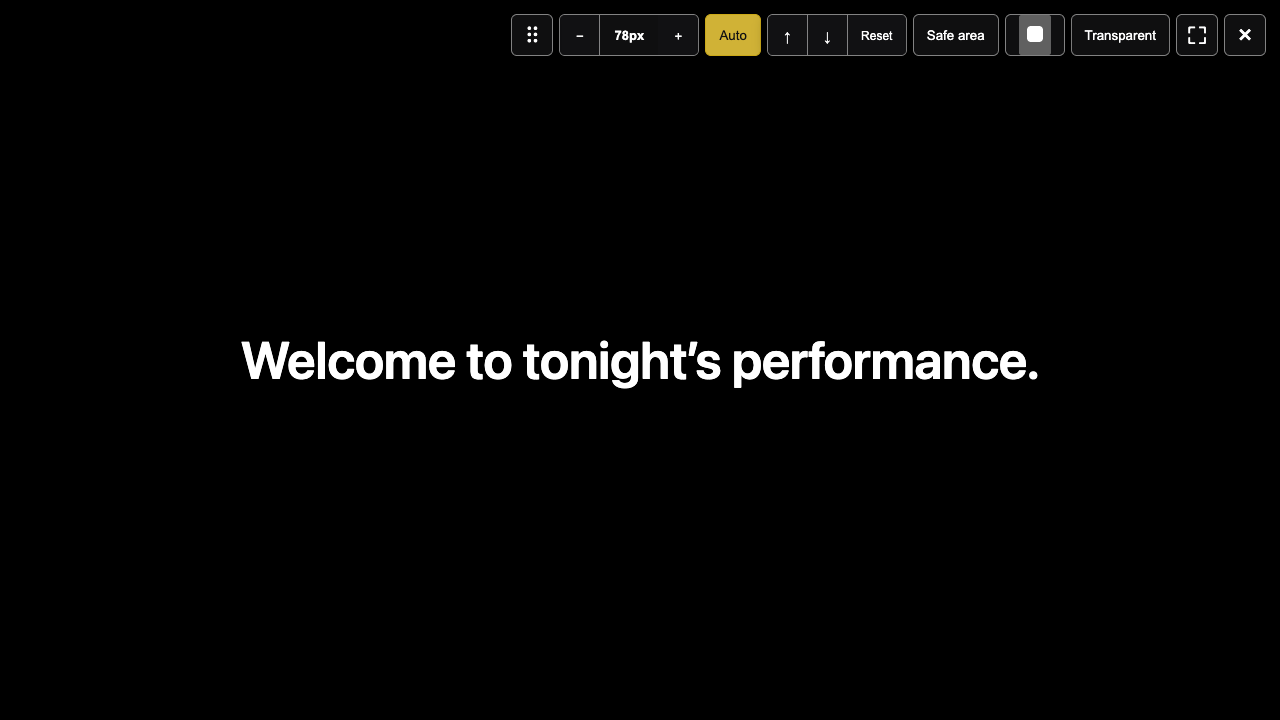
- In Settings, select A, B, or C and the target display, then select
Open projection window. A newly opened window starts safely black. Confirm the setup before displaying a cue. - Open and check each output separately. After moving or switching displays, confirm that its output name still matches the physical projector.
- During Live, a reopened failed output may start safely black. Check the projector, then select
Reactivate.
Top toolbar, from left to right
Move the pointer to the top of the window to reveal the toolbar. In full screen, move it to the very top edge. These controls affect this local projection output, not the Viewer’s text styling.
⠿is the window move handle. Leave full screen first, then drag it or focus it and press an arrow key. To change physical displays, use the A/B/C display assignment in Settings.−, the px readout, and+decrease, show, and increase this output’s font size. Changing it switches to a manual size.Autoreturns this output to automatic font sizing based on the longest source-language cue. Check the actual projector for overflow.↑and↓nudge the subtitle up or down.Resetclears only this output’s vertical fine-tune offset; it keeps the font size and Auto/manual choice.Safe areashows or hides a boundary guide for checking the subtitle position. During Live it is an overlay and does not lift Blackout or change the audience cue.- The colour swatch opens
Text color: white, yellow, cyan, black, or a custom colour. Dragging in the custom picker updates this local output’s colour. Transparentmakes the window background transparent so subtitles can overlay other content on this display. It briefly reopens the output and is unavailable during Live.⛶enters or leaves full screen.×closes only this output window; it does not End Show or close other outputs.
Tell a black screen, Blackout, and Reactivate apart
- Open — safely black: the window is open but has not shown a cue, or it is temporarily black during recovery.
- Blackout: the operator asked local projection to hide captions. When connected, Viewer may also be blacked out.
- Reactivate: resumes the local cue after checking that the output or display has recovered. Check stage safety before selecting it.
Expected result and audience impact: Closing an output affects only that local projection window. A display change does not end the show. After reopening, verify the image and cue before Reactivate.
If something goes wrong: For a display removed or output failed status, check the cable and macOS display list, assign an available display in Settings, reopen the output, and verify the caption. Do not confuse Blackout with closing a window, and do not Reactivate before checking the image.