
4上線演出
4.1 如何為演出部署現場字幕
透過完成劇本、確認不同方案的地區設定、設定操作員存取權限,並分享觀眾連結來部署現場字幕。
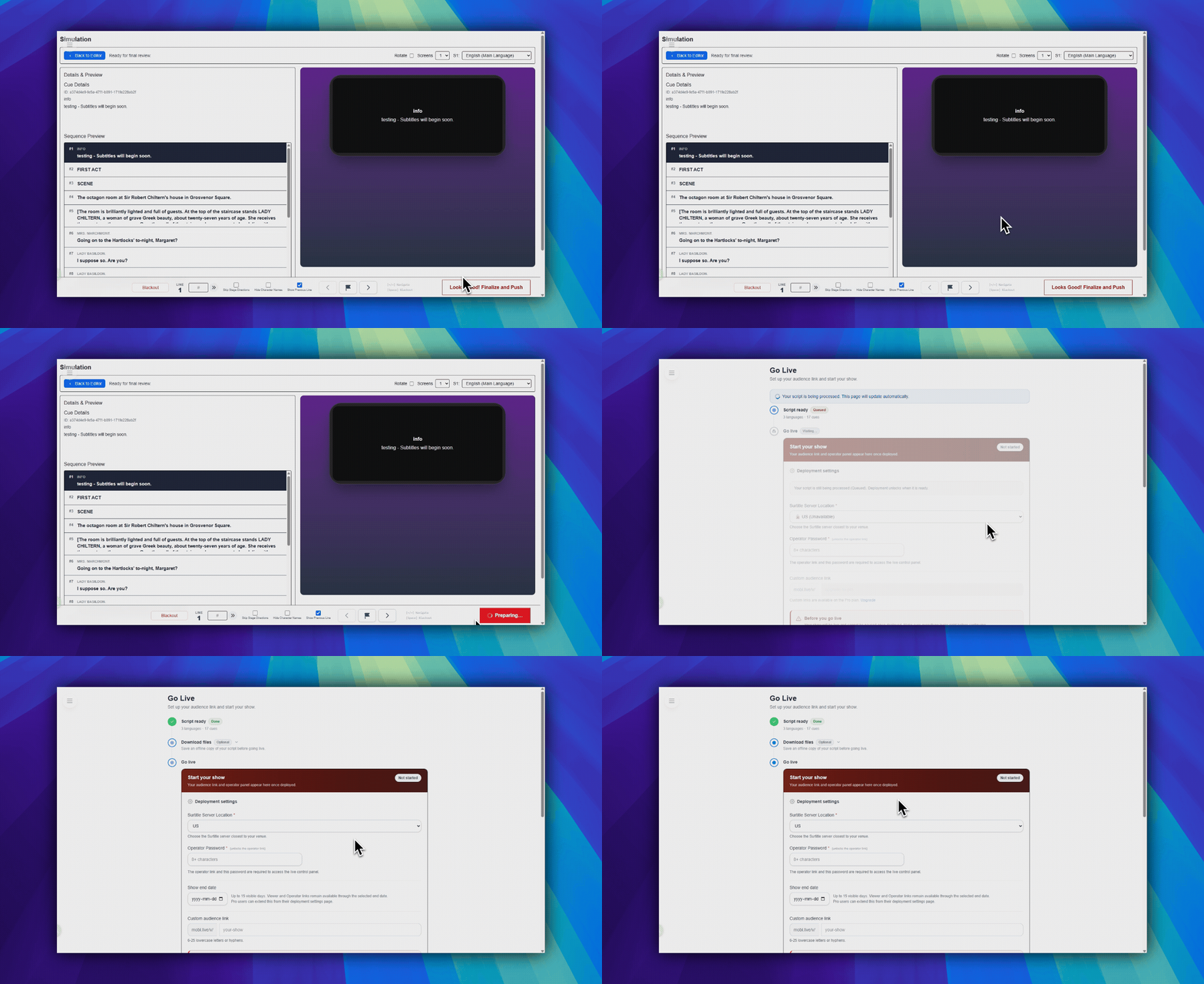
請先完成 模擬。部署在 Looks Good! Finalize and Push 之後開始。
開啟上線頁面
在模擬介面右下角使用 Looks Good! Finalize and Push。
- 在 模擬 中檢查劇本。
- 按一下
Looks Good! Finalize and Push。 - SurtitleLive 開啟
上線表單。
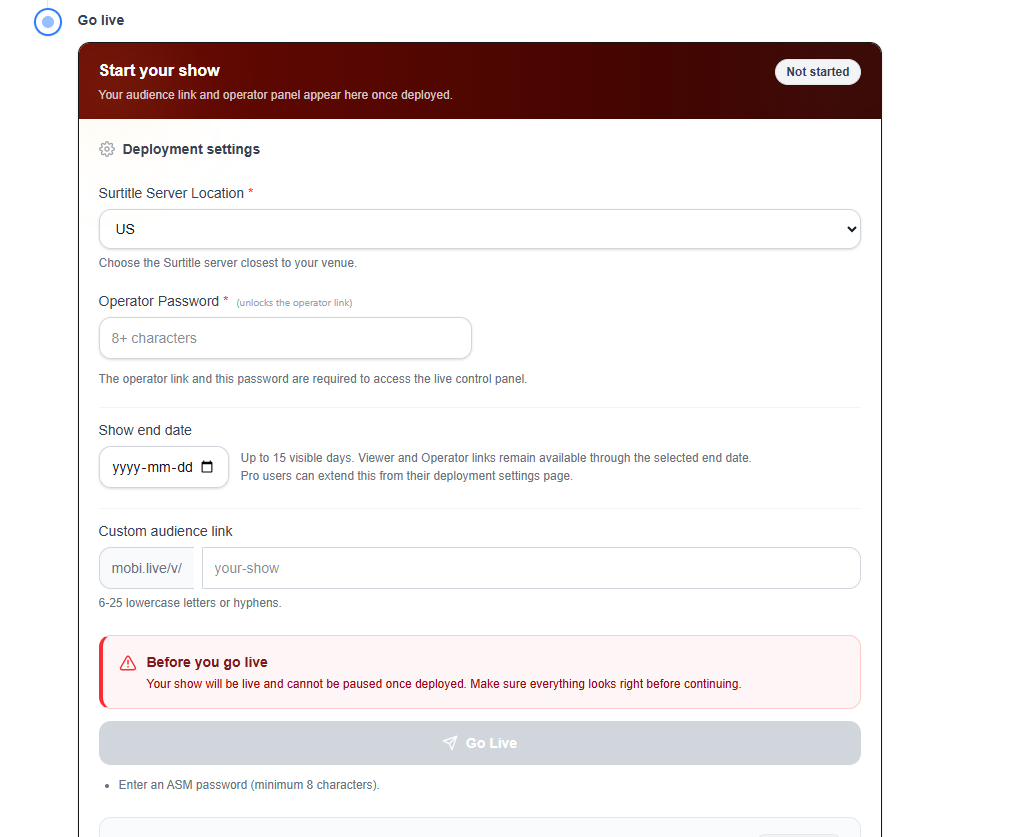
填寫 Go Live 表單
- 字幕伺服器位置:Lite 使用系統選定的 US Central。Pro 和 Pro+ 可從允許的地區中選擇。
- 操作員密碼:必填。解鎖 ASM 操作員連結。
- 演出結束日期:當方案支援自訂結束日期時顯示。Lite 保持預設 7 天可見視窗。
- 自訂觀眾連結:方案允許時可選。
開始部署
表單準備好後,按一下表單底部的 上線。這是帶有紙飛機圖示的主要藍色送出按鈕。
- 等待部署請求完成。
- 確認部署成功後,再開啟下一頁。
觀眾到場前檢查:提前足夠早地部署,以測試觀眾連結、ASM 連結、QR 流程和投影設定。
成功後開啟部署控制台
部署後,前往 部署控制台。
- 檢查
Viewer(觀眾)和ASM 控制台(操作員)。 - 從
觀眾與操作員連結複製或開啟連結。 - 使用
演出連結 ID確認已部署的短連結集。
部署後的工作,請繼續閱讀 管理即時部署。
部署限制
- Free:無即時部署。
- Lite:1 個使用中的部署,固定顯示期間。
- Pro 和 Pro+:更多部署容量和選項,如介面所示。
常見問題
依據目前 SurtitleLive 系統整理的此工作流程常見問題。
How do I deploy live subtitles in SurtitleLive?+
Check the script in Simulation first, finalize it, open the Go Live flow, confirm the plan-specific region and duration, set the operator password, then deploy and share the Viewer Link or QR code.
Why is Deploy unavailable for me?+
Live deployment requires a paid live-delivery plan, and the script must be ready in the workflow before deployment actions unlock.